SAP exchange rate automation is the practice of loading currency rates from a spreadsheet, a whole month's pairs at once, rather than keying every line into OB08. PostNow runs it from Excel: each rate is a row, and the add-in writes them with the standard BAPI_EXCHANGERATE_CREATEMULTIPLE, setting the quotation and factors, checking the values, and committing the set in one run, with any SAP error rendered in plain language.
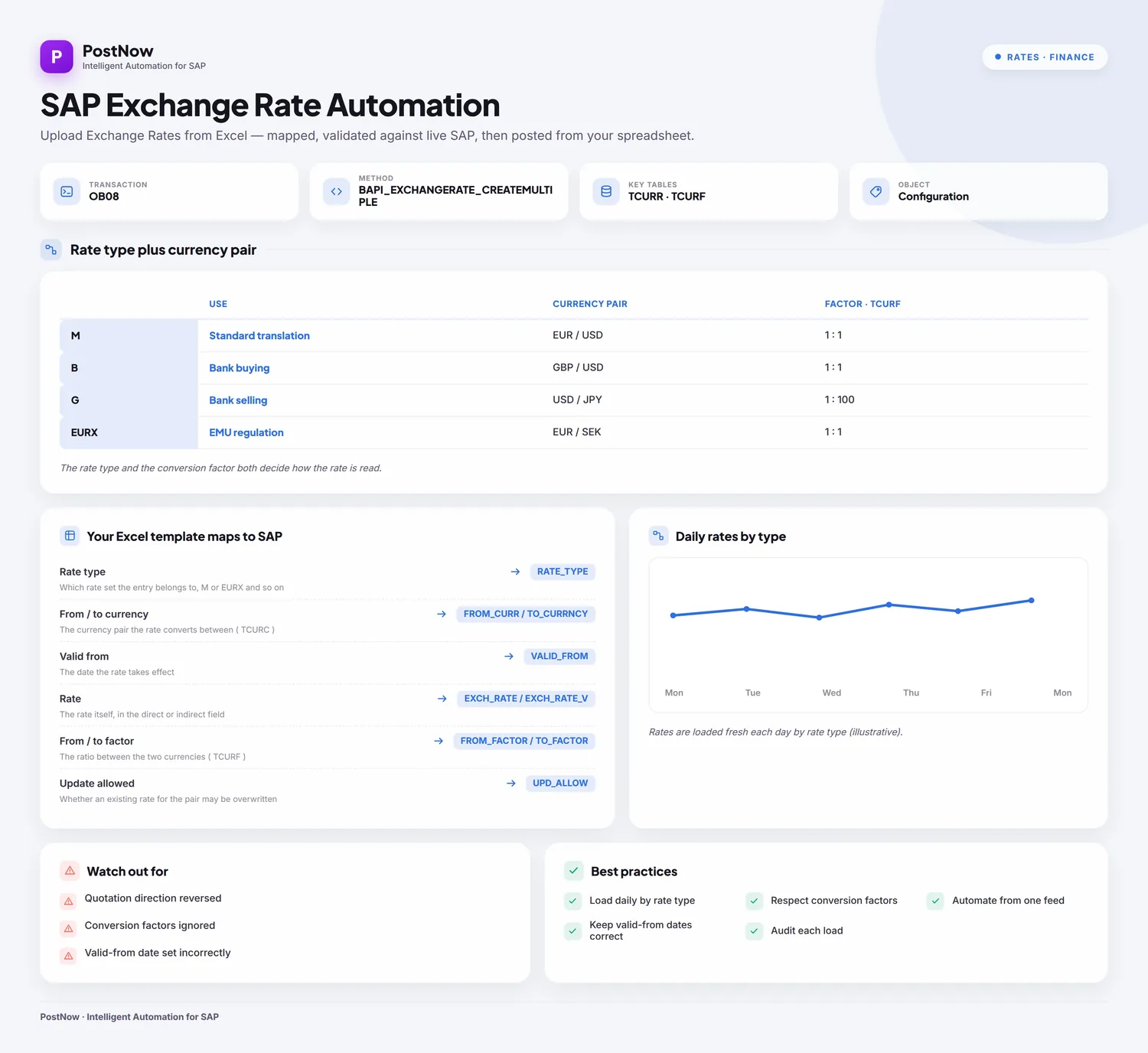
This is a twelve-step worked example of uploading exchange rates from Excel to SAP, a flat list of currency pairs and their rates, written to the currency table in one run. Keep the mapping and you have an exchange rate Excel template ready for next month's feed. It works on classic ECC and on S/4HANA, where the rate table still sits behind OB08 and the same BAPI. After the initial setup, whoever loads the rates needs no ABAP and no developer.
Why upload exchange rates from Excel instead of keying OB08
Maintaining rates manually in OB08 means entering, for each pair, the rate type, the two currencies, the valid-from date, the rate itself, and the conversion factors, line after line. A couple of pairs is quick. A monthly feed covering every currency the business trades in, or a backfill of missing history, becomes dozens of rows keyed one at a time, and a rate entered under the wrong quotation or with the wrong factor quietly distorts every conversion that follows.
Uploading exchange rates from Excel changes the work. The rates already arrive in a spreadsheet, a bank feed or a treasury export, and post to SAP, the whole list, in one run. For a routine monthly rate upload or a one-off bulk currency rates load, the awkward parts, picking the function, mapping the fields, getting the quotation and factors right, and reading FI messages, are taken care of. The twelve steps below outline the whole flow.
Before you start: what you need
- Your rates in Excel, one currency pair per row, with the rate type and validity stated so each rate lands in the right place.
- SAP authorization to maintain exchange rates, the access you would use for
OB08, across the rate types you are loading. - PostNow in Excel, coupled to your SAP system. Its function modules are put into SAP a single time with your Basis or ABAP team, after which the rate runs happen from the task pane.
Your exchange rate Excel template: the fields SAP expects
A rate row names the rate type, the currency pair, when it applies, the rate, and the factors. These are the fields a rate upload depends on; carry them, and confirm the currencies, rate type, and factors they name already exist.
| Excel column | SAP field | Why it matters |
|---|---|---|
| Rate type | RATE_TYPE | Which rate set the entry belongs to, M or EURX and so on |
| From / to currency | FROM_CURR / TO_CURRNCY | The currency pair the rate converts between (TCURC) |
| Valid from | VALID_FROM | The date the rate takes effect |
| Rate | EXCH_RATE / EXCH_RATE_V | The rate itself, in the direct or indirect field |
| From / to factor | FROM_FACTOR / TO_FACTOR | The ratio between the two currencies (TCURF) |
| Update allowed | UPD_ALLOW | Whether an existing rate for the pair may be overwritten |
BAPI_EXCHANGERATE_CREATEMULTIPLE writes one or more rates to the currency table TCURR in a single call, each row carrying the rate type, currency pair, validity, the rate in its direct or indirect field, and the conversion factors, with an update flag to overwrite an existing entry. The set is persisted once BAPI_TRANSACTION_COMMIT runs, and a single-record BAPI_EXCHANGERATE_CREATE exists for one rate at a time. Step 2 has PostNow's function finder pick the BAPI, pull its structure in, and take care of the commit.The exchange rate upload, step by step
Lay out and open your sheet
Put each rate on a row under headers like Rate Type, From Currency, To Currency, Valid From, Rate, From Factor, and To Factor. Because each rate stands on its own, there is nothing to group, one row is one entry. Open the workbook and put the PostNow task pane up beside it.
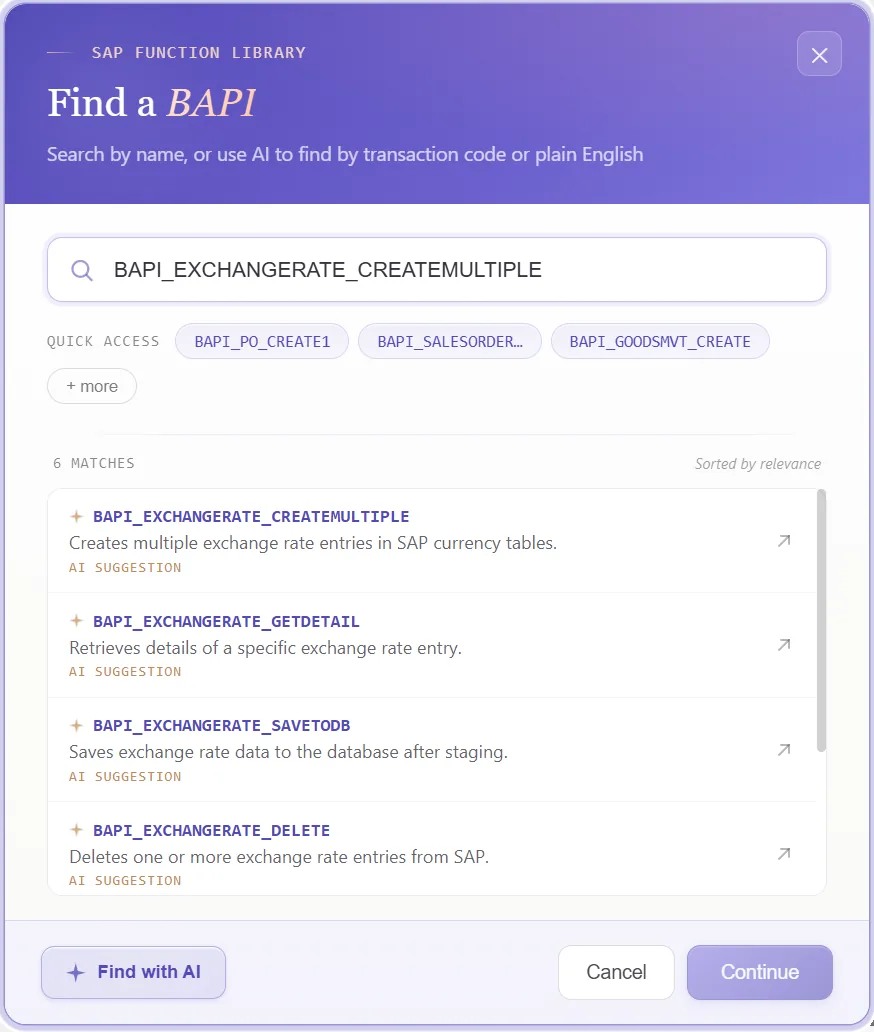
Choose the exchange rate BAPI
A standard call writes the rates, so nothing is recorded. In the function finder, pick what the job needs:
- Take
BAPI_EXCHANGERATE_CREATEMULTIPLE, which writes a whole list of rates to the currency table in one call - An update flag on each row decides whether an existing rate for the pair may be overwritten
- The set is saved on commit, which PostNow issues after a successful run; a single-record call exists for one rate at a time
Confirm the function and PostNow brings in its rate structure, ready to line up with your columns, so OB08 stays shut.
Look over the structure it returns
What comes back is a single flat rate structure and the result, no header and detail, since every rate is self-contained. Because it mirrors how a rate sits in the currency table, a glance shows what each row needs:
That tells you, before any mapping, which columns identify the rate and which carry its value and factors.
Open the Mapping Designer
Picking the BAPI opens the Mapping Designer with a line for every rate field. Two things matter here:
- Extensions are detected. Append fields your system adds to the rate structure are pulled in automatically.
- You can add your own. Anything not detected you place manually, so standard and custom fields ride in one run.
Match columns with Mapping AI AI
Now hook the structures to your data. Mapping AI proposes an Excel column for each rate field, reading your headers or a screenshot you drop in, and you confirm or adjust, useful when a feed labels the currencies, rate, and factors in its own way.
Auto Map and tag the rate columns
Run Auto Map to fix the mapping and write SAP-tagged headers across the sheet. Because each rate is one row, there is no header to group, the mapping simply binds every column to its field. From here the workbook is your exchange rate template, ready to reuse next month.
Set formatting and the quotation
A field's properties determine how its value posts: upper case on the currency codes, a date format on the valid-from date, the right decimals on the rate and factors, defaults for a constant rate type, and regex.
The quotation is the choice that matters most here: a rate goes into the direct field or the indirect one depending on the rate type, and the factors set the ratio between the currencies. Map the rate to the field its quotation expects, and PostNow carries it across so the conversion comes out right.
Look over the rows in Excel first
Worth a look before posting: an FI error usually shows up as a short code once a rate has already failed. Validate brings the check upstream, every row is held against SAP's length, format, and required-field rules and the problem cells are flagged, so the sheet is sound before any rate is sent.
Confirm against live SAP
Clean formatting is no proof a value exists, a currency code can read fine and not be set up. To confirm it, open the field's properties, switch field validation on, and give the check table and field, a currency against TCURC, a rate type against TCURV, or a factor against TCURF. Select the cell, run Validate master data, and PostNow asks live SAP whether the value is set up and usable.
Shape the load with loops and conditions
A flat rate list still benefits from a little structure, so set it up here:
- Loops: the create call steps down your rate rows, writing each one to the currency table in turn.
- IF conditions: handle only the rates you want, for example posting only rows flagged for the new month, or skipping a pair whose rate is blank.
Set the scope, post, and review AI
Choose the range with Run Scope, one rate first, then the rest, and press Run. A few aids:
- Run log: results report live and write into a log column beside each row in Excel.
- Payload view: open the exact data sent to SAP for any rate, so a failure is never a guess.
- AI error review: AI Review reads the FI message and explains, plainly, what blocked the rate and where to look.
- Result per rate: PostNow writes the outcome back beside each rate row, so you can see at a glance what wrote.
Publish and roll it out to the team
Once the run is clean, publish it. The configuration becomes a script the treasury team runs unchanged, they open it, paste their rates, and post, with no mapping to rebuild and no need to know the BAPI underneath. A one-time build becomes the standard way to load the monthly rates.
Let's talk
Bring a real monthly rate feed and a live SAP connection to a working session. We will set the quotation and factors, map, validate, and post the rates for real, with AI taking the strain. No slide decks.
Frequently asked questions
What is SAP exchange rate automation?
OB08. With PostNow the rates stay in Excel and post in one governed run via BAPI_EXCHANGERATE_CREATEMULTIPLE, while AI maps the fields, checks the values, and explains any FI error.How do you upload exchange rates to SAP from Excel?
BAPI_EXCHANGERATE_CREATEMULTIPLE and writes the rates to the currency table, so there is no OB08 keying and no ABAP.Which BAPI uploads SAP exchange rates?
BAPI_EXCHANGERATE_CREATEMULTIPLE writes one or more rates to the currency table TCURR in a single call, each row carrying the rate type, currency pair, validity, the rate, and the conversion factors, with an update flag to overwrite an existing entry. It is saved with BAPI_TRANSACTION_COMMIT, which PostNow handles for you, and a single-record BAPI_EXCHANGERATE_CREATE exists for one rate at a time.