SAP vendor invoice automation is the practice of posting incoming invoices from a spreadsheet, each matched to its purchase order, rather than keying every one into MIRO. PostNow runs it from Excel: each invoice item is a row, and the add-in posts them with the standard BAPI_INCOMINGINVOICE_CREATE, referencing the purchase order, balancing the gross amount, checking the values, and committing in one run, with any SAP error rendered in plain language.
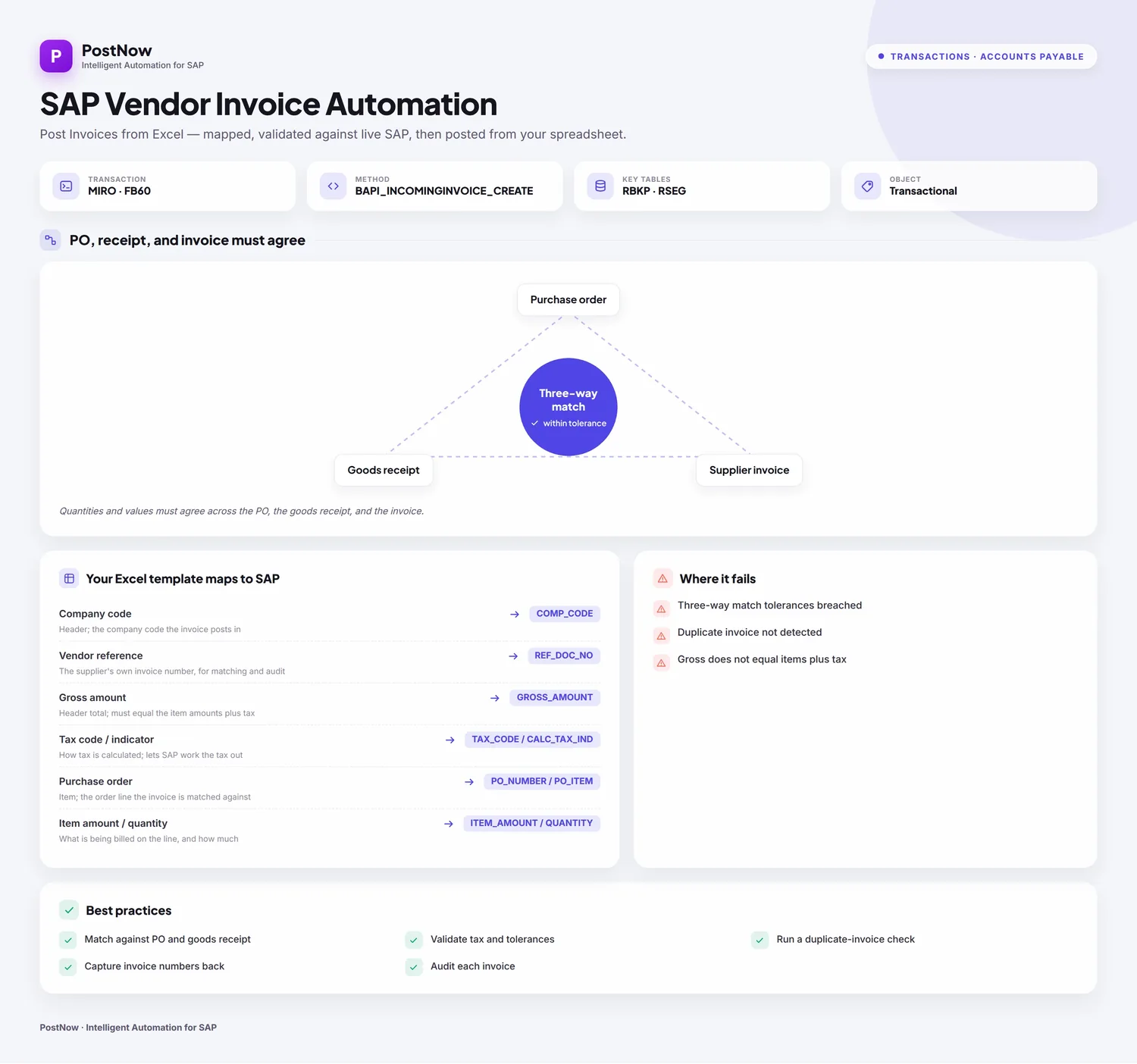
This is a twelve-step worked example of posting vendor invoices from Excel to SAP, PO-referenced invoices that feed the three-way match, balanced and committed in one run. Keep the mapping, the invoice grouping included, and you have a vendor invoice Excel template ready for the next batch from accounts payable. It works on classic ECC and on S/4HANA, where Logistics Invoice Verification still posts behind MIRO and the same BAPI. Once the one-time setup is done, whoever posts the invoices needs no ABAP and no developer.
Why post vendor invoices from Excel instead of keying MIRO
Posting an invoice manually in MIRO means entering the header, the company code, the posting date, the vendor reference, the gross amount, and the tax code, then matching each line back to its purchase order so the amounts agree. One invoice is manageable. A day's mailbag of supplier invoices, or a backlog after a system freeze, becomes screen after screen, and an amount that does not balance or a PO that cannot be found only shows once the document is rejected.
Posting vendor invoices from Excel changes the rhythm. The invoices already sit in a spreadsheet, an AP export or a supplier statement, and post to SAP, matched and balanced, in one run. For a routine bulk invoice posting or a one-off mass invoice upload, the awkward parts, picking the function, mapping the header and item fields, getting amounts and tax right, and reading MM messages, are taken care of. The twelve steps below trace the whole flow.
Before you start: what you need
- Your invoices in Excel, one item per row, with a shared invoice reference where several lines belong to one invoice.
- SAP authorization to post incoming invoices, the access you would use for
MIRO, across the company codes and document types you are posting. - PostNow in Excel, bridged to your SAP system. Its function modules are installed in SAP a single time with your Basis or ABAP team, after which the invoice runs happen from the task pane.
Your vendor invoice Excel template: the fields SAP expects
An invoice has header data, the company code, dates, vendor reference, gross amount, and tax, and item data that ties each line to its purchase order. These are the fields an invoice run depends on; carry them, and confirm the vendor, purchase orders, and tax codes they name already exist.
| Excel column | SAP field | Why it matters |
|---|---|---|
| Company code | COMP_CODE | Header; the company code the invoice posts in |
| Vendor reference | REF_DOC_NO | The supplier's own invoice number, for matching and audit |
| Gross amount | GROSS_AMOUNT | Header total; must equal the item amounts plus tax |
| Tax code / indicator | TAX_CODE / CALC_TAX_IND | How tax is calculated; lets SAP work the tax out |
| Purchase order | PO_NUMBER / PO_ITEM | Item; the order line the invoice is matched against |
| Item amount / quantity | ITEM_AMOUNT / QUANTITY | What is being billed on the line, and how much |
BAPI_INCOMINGINVOICE_CREATE posts an incoming invoice from a HEADERDATA structure carrying the company code, dates, gross amount, and tax indicator, and an ITEMDATA table whose rows reference the purchase order and goods receipt, with further tables for GL, material, and tax lines. It returns the invoice document number and fiscal year, and the document is persisted once BAPI_TRANSACTION_COMMIT runs. Step 2 has PostNow's function finder choose the BAPI, pull its structures in, and handle the commit.The vendor invoice run, step by step
Lay out and open your sheet
Put each invoice item on a row under headers like Invoice Ref, Company Code, Posting Date, Vendor Reference, Gross Amount, Tax Code, PO Number, and Item Amount, with a shared Invoice Ref where several lines make up one invoice. Open the workbook and pin the PostNow task pane beside it.
Choose the invoice BAPI
A standard call posts the invoice, so nothing is recorded. In the function finder, choose what suits:
- Take
BAPI_INCOMINGINVOICE_CREATE, which posts an incoming invoice against its purchase order - The header carries the gross amount and tax indicator, so SAP can balance and work the tax out
- The invoice is saved on commit, which PostNow issues after each successful post, returning the document and fiscal year
Confirm the function and PostNow brings in its header and item structures, ready to line up with your columns, so MIRO stays shut.
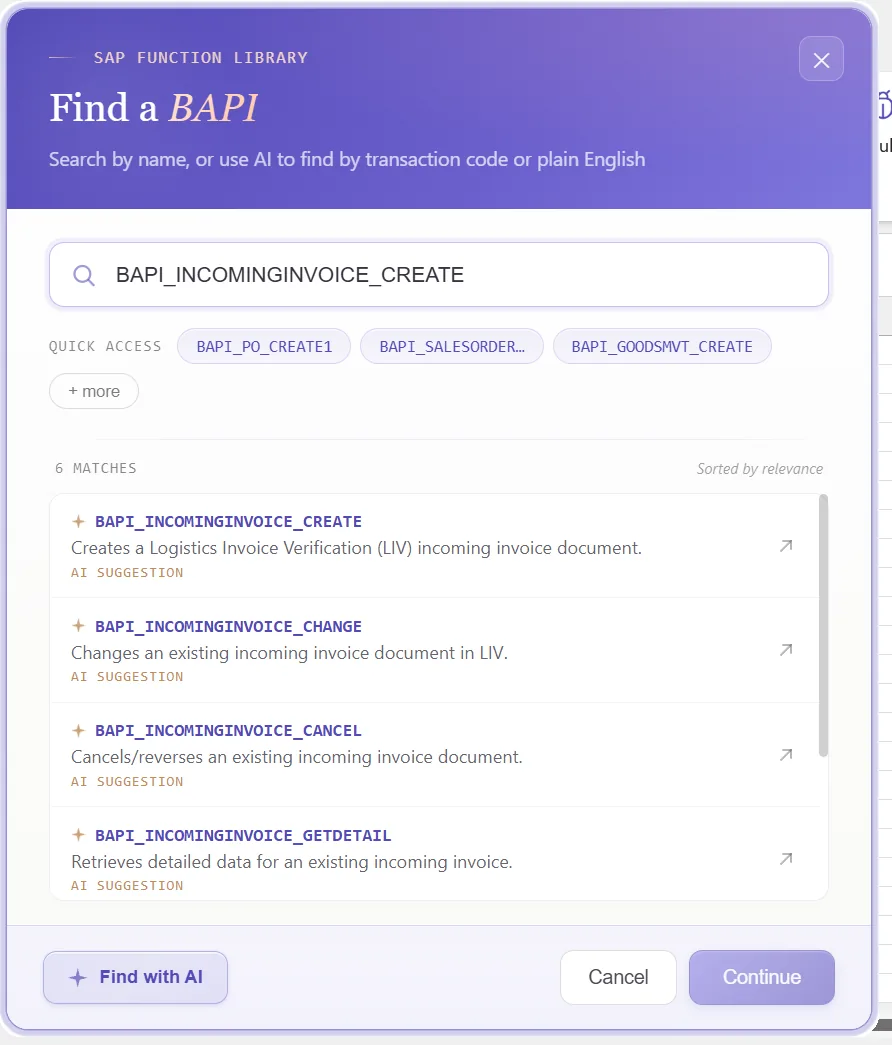
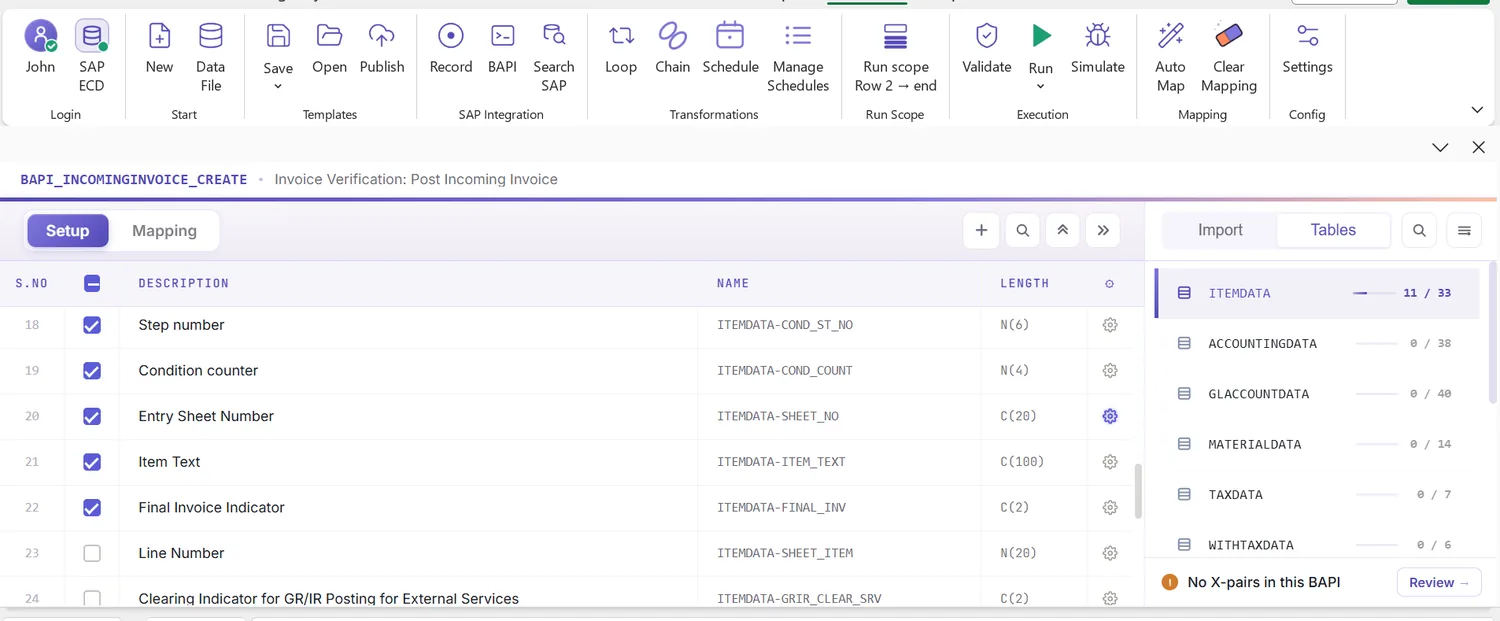
Look over the structures it returns
What comes back is an invoice header, a table of PO-referenced items, supporting tables, and the result. Because it mirrors how an invoice is built, a glance shows what belongs to the header and what belongs to each item:
That tells you, before any mapping, which columns are header-level and which repeat per item.
Open the Mapping Designer
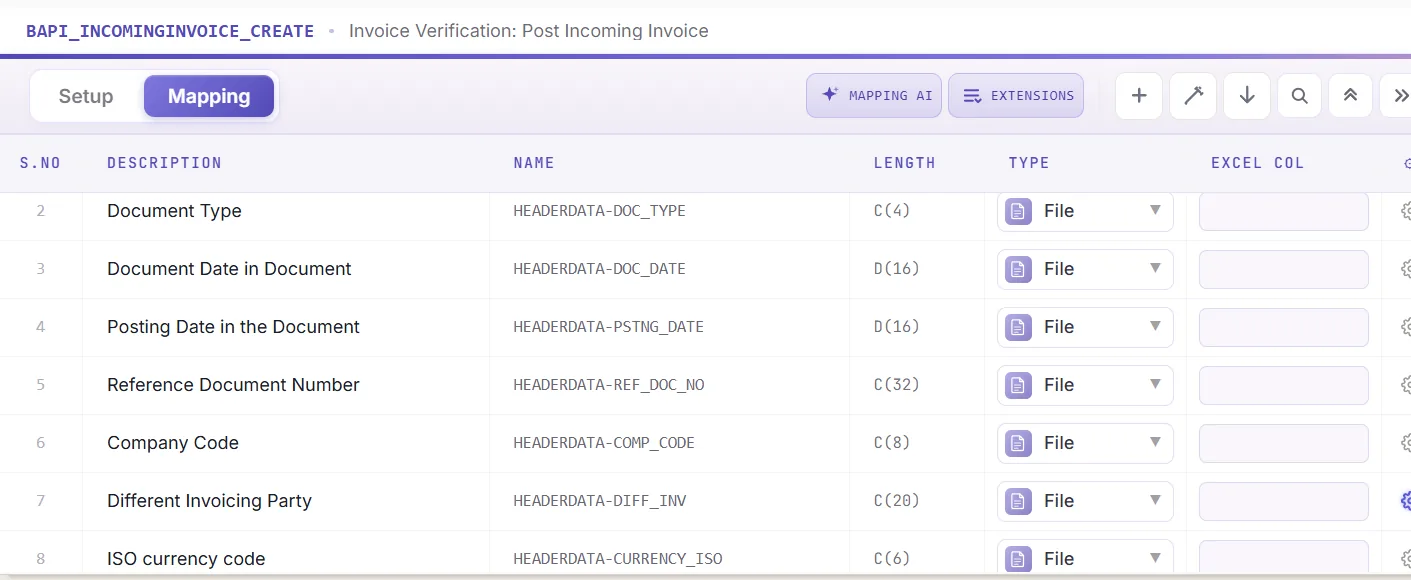
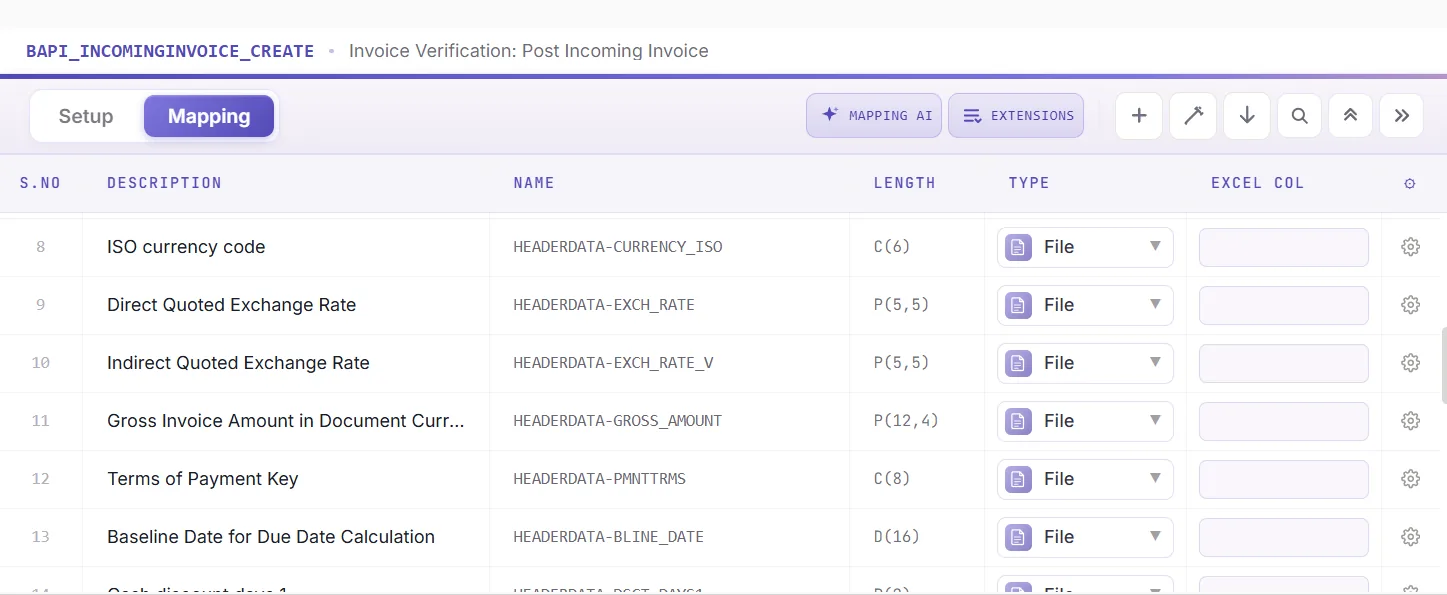
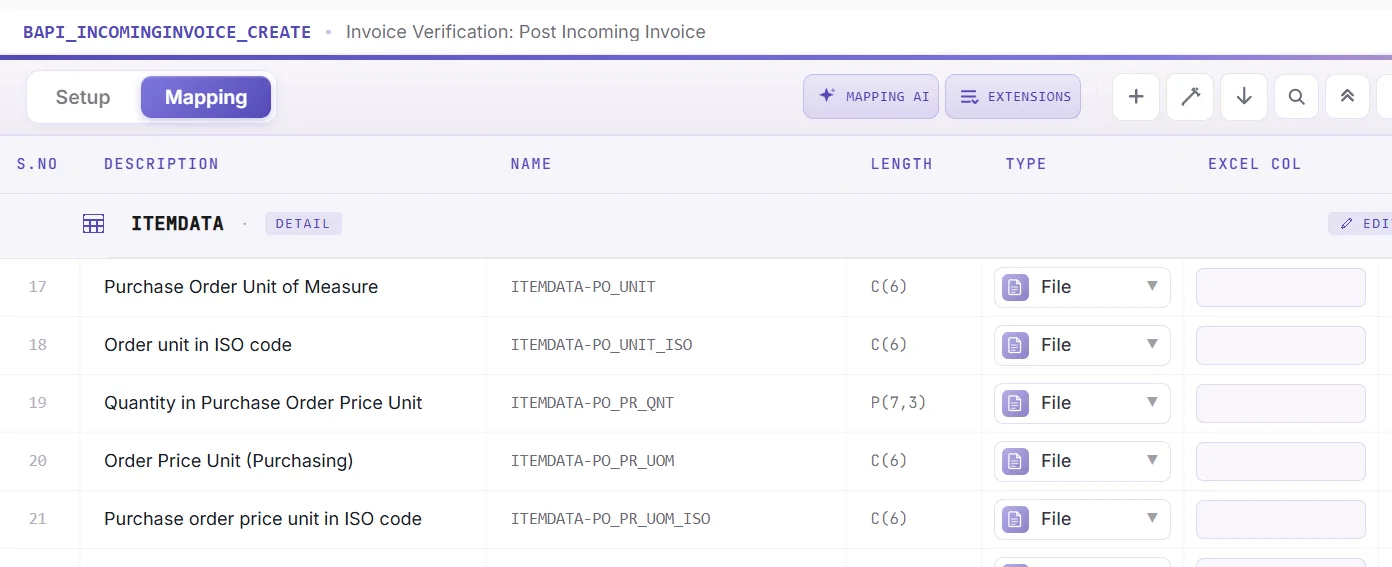
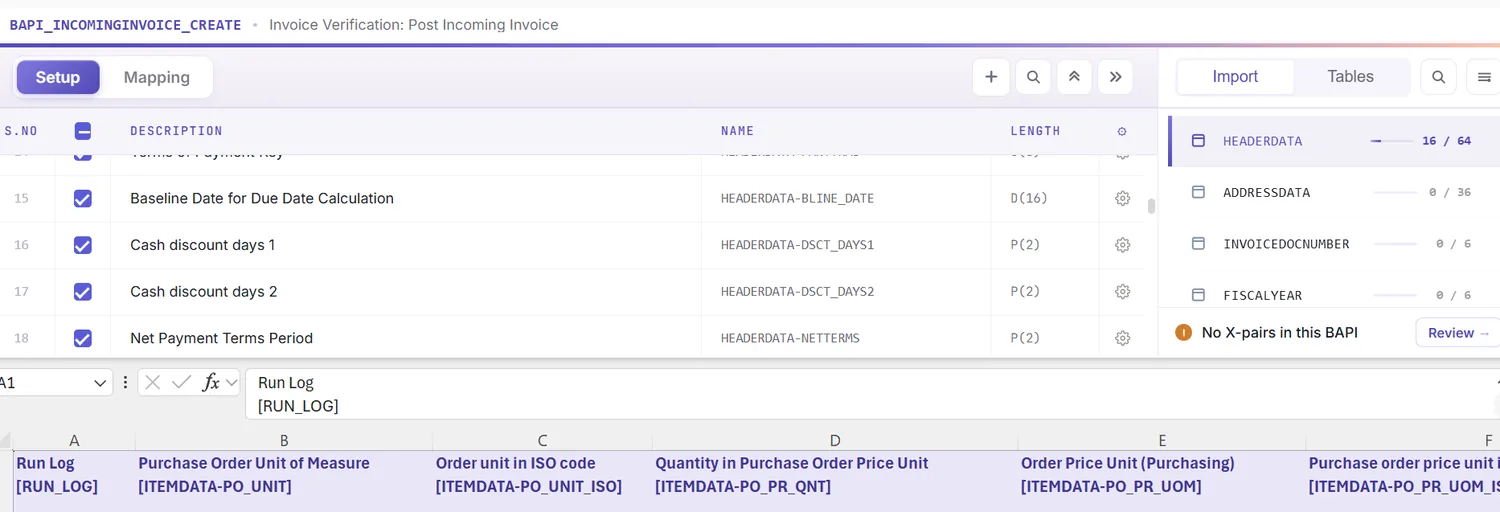
Choosing the BAPI populates the Mapping Designer with a line for every header and item field. Two things matter here:
- Extensions are detected. Append fields your system adds to the invoice structures are pulled in automatically.
- You can add your own. Anything not caught you place manually, so standard and custom fields ride in one run.
Match columns with Mapping AI AI
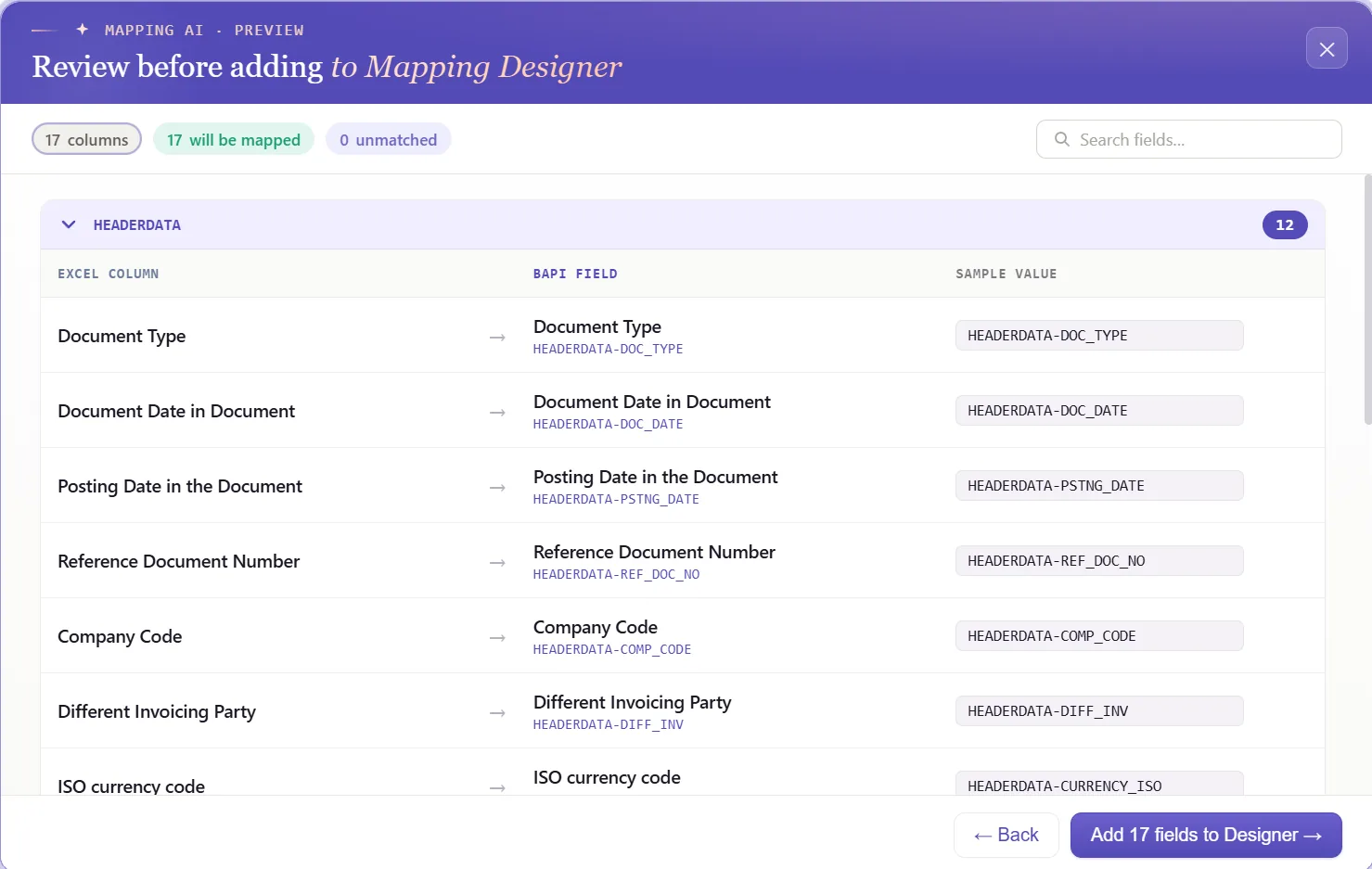
Now line the structures up with your data. Mapping AI proposes an Excel column for each header and item field, reading your headers or a screenshot you drop in, and you confirm or adjust, useful when an invoice mixes header totals with PO-referenced lines.
Auto Map and group items under an invoice
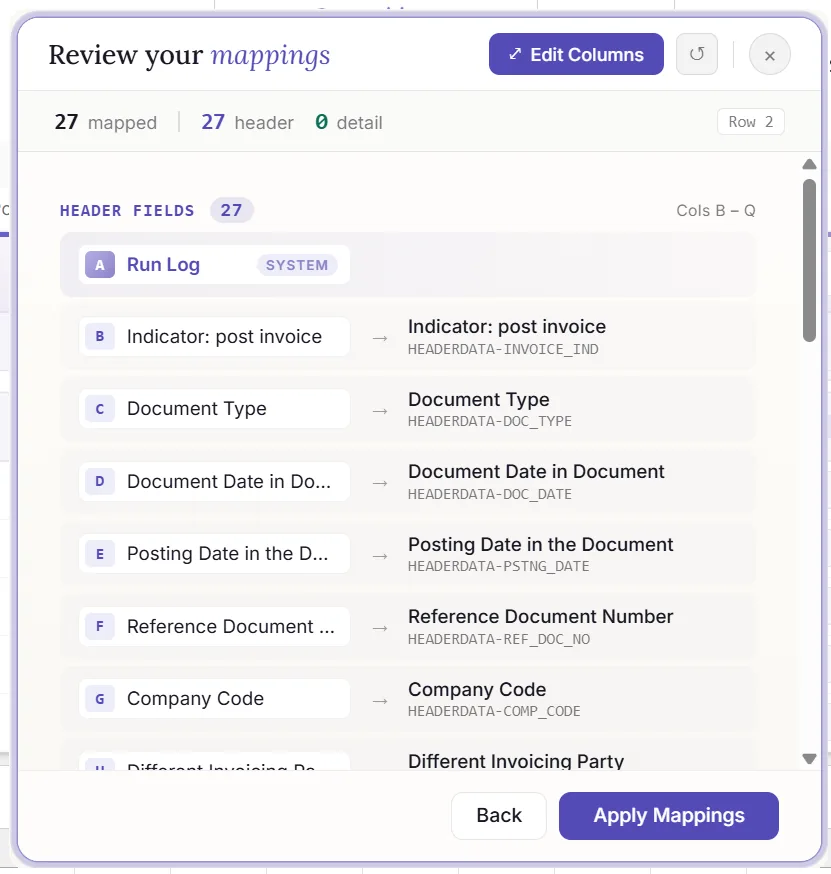
Run Auto Map to fix the mapping and write SAP-tagged headers across the sheet. Because an invoice can carry several items, this is where you set the grouping: rows sharing an invoice reference post together as one document, the header read once and the lines read as items. The workbook is the template from here, and the grouping comes with it.
Set formatting and defaults
A field's properties control how its value posts: leading zeros on the vendor and PO numbers, upper case on codes, a date format on the posting date, the right decimals on the gross and item amounts, defaults for a constant company code, and regex. Because the document has to balance, getting the amount decimals right is what keeps the gross total agreeing with the items and tax.
Test the data in Excel first
Best done before posting: an MM error usually shows up as a short code once an invoice has already failed. Validate brings the check upstream, every row is measured against SAP's length, format, and required-field rules, the gross total is checked against the items and tax, and the problem cells are flagged, so the sheet balances before anything is sent.
Confirm against live SAP
Clean formatting is no proof a value exists, a purchase order can read fine and be closed. To test it, open the field's properties, switch on field validation, and supply the check table and field, a vendor against LFA1, a purchase order against EKKO, or a tax code against T007A. Select the cell, run Validate master data, and PostNow asks live SAP whether the value is present and open for invoicing.
Group items into invoices with loops
An invoice with several lines is a header/detail case, so this is where the structure pays off:
- Header/detail loops: rows sharing an invoice reference collapse into one document, the header taken once and each line added as an item against its purchase order.
- IF conditions: handle only the invoices you want, for example posting only where a PO reference is present, or holding back lines flagged as disputed.
Set the scope, post, and review AI
Set the range with Run Scope, one invoice first, then the rest, and press Run. A few aids:
- Run log: results appear live and write into a log column next to each row in Excel.
- Payload view: open the exact data sent to SAP for any invoice, header and items together, so a failure is never a guess.
- AI error review: AI Review reads the invoice-verification message and explains, plainly, what blocked the document and where to look.
- Document and year: PostNow writes the invoice document number and fiscal year back beside the invoice it belongs to.
Publish and roll it out to the team
Once the run checks out, publish. The configuration, grouping and all, becomes a script accounts payable runs unchanged, they open it, paste their invoices, and post, with no mapping to rebuild and no need to know the BAPI underneath. A one-time build becomes the standard way to post supplier invoices.
Let's talk
Bring a real batch of supplier invoices and a live SAP connection to a working session. We will match each line to its purchase order, balance the gross amount, map, validate, and post for real, with AI taking the strain. No slide decks.
Frequently asked questions
What is SAP vendor invoice automation?
MIRO. With PostNow the invoices stay in Excel and post in one governed run via BAPI_INCOMINGINVOICE_CREATE, while AI maps the fields, balances the gross amount, checks the values, and explains any MM error.How do you post vendor invoices in SAP from Excel?
BAPI_INCOMINGINVOICE_CREATE, matches each item to its PO, and commits the document, so there is no MIRO keying and no ABAP.Which BAPI posts SAP vendor invoices?
BAPI_INCOMINGINVOICE_CREATE posts an incoming invoice from a HEADERDATA structure with the gross amount and tax indicator and an ITEMDATA table whose rows reference the purchase order and goods receipt. It returns the invoice document number and fiscal year, and is saved with BAPI_TRANSACTION_COMMIT, which PostNow handles for you.