What is an SAP Excel add-in?
An SAP Excel add-in connects Microsoft Excel with SAP so users can work with SAP data without repeatedly moving between spreadsheets and transaction screens. Depending on the implementation, the add-in can retrieve SAP data into Excel, map spreadsheet columns to SAP fields, validate records, post new transactions, update existing records and return SAP results to the same workbook.
- Use SAP's application interfaces. Post through BAPIs, APIs or the transaction itself rather than writing directly to database tables.
- Respect SAP authorizations. Excel should never give a user permissions they do not already have in SAP.
- Validate before posting. Finding a bad cost center in Excel is cheaper than correcting a posted SAP document.
- Return results row by row. The workbook should show what succeeded, what failed and which SAP document was created.
- Work in both directions. The most useful model is SAP ↔ Excel, not only Excel → SAP.
- Turn repeated work into templates. Mapping and validation rules should not be rebuilt every month.
Why Excel remains part of SAP work
Nobody puts Excel into an SAP process because they want another system to maintain. It stays there because it is genuinely good at a certain kind of work.
Finance teams can fill formulas down thousands of rows, sort exceptions, compare before-and-after values and review a full posting batch before release. Buyers can reshape purchase-order files in minutes. Master-data teams can scan hundreds of proposed changes on one screen in a way that is difficult to reproduce in a transaction-by-transaction interface.
SAP, meanwhile, is good at something different. It owns the business rules, master data, authorizations, document flow, configuration and audit trail.
The problem is not that people use Excel. The problem is the manual bridge between Excel and SAP: copy and paste, re-keying, ad-hoc CSV files, one-off upload programs and exports that have to be cleaned before anyone can use them.
Excel is good at
- Reviewing large sets
- Sorting and filtering
- Formulas and calculations
- Bulk editing
- Analysis
RE-KEYING
CSV EXPORTS
MANUAL RECONCILIATION
SAP is good at
- Business rules
- Authorizations
- Transactions
- Master data
- Audit trail
A good SAP Excel integration leaves each system doing what it already does well. Excel becomes the working surface. SAP remains the system of record.
What an SAP Excel add-in actually does
The phrase SAP Excel add-in covers a wide range of products. At the simplest end, an add-in may retrieve a report. At the other end, it can turn Excel into a controlled interface for creating, changing, validating and reporting SAP data.
For operational SAP work, there are four capabilities that matter most.
| Capability | Direction | Typical example | Why it matters |
|---|---|---|---|
| Upload | Excel → SAP | Create 500 purchase orders | Eliminates repetitive entry |
| Update | Excel → SAP | Change 8,000 material records | Turns mass maintenance into a controlled task |
| Validate | Excel ↔ SAP | Check company codes and cost centers before posting | Catches problems while they are cheap to fix |
| Report | SAP → Excel | Bring purchasing or accounting data into a workbook | Removes repeated export-and-cleanup cycles |
If an add-in only sends spreadsheet rows into SAP, it solves data entry. If it can also retrieve, validate and update SAP data, it starts solving the larger process.

Upload data from Excel to SAP
This is the most familiar use case. Imagine Finance has 1,200 journal entries prepared in Excel. Without integration, somebody may need to review the spreadsheet, open SAP, enter the first document, enter the line items, post it, record the document number and repeat the sequence again and again.
The business data already exists. Most of the manual effort is translation.
With an SAP Excel add-in, the working pattern becomes:
Typical processes include journal entries, vendor invoices, purchase orders, purchase requisitions, goods movements, sales orders, material master, vendor and customer data, Business Partners, cost centers, profit centers, assets, BOMs and pricing conditions.
The important point is that an Excel source should not turn into a direct database update merely because the data is convenient to access. SAP should still execute the business transaction.
How Excel should connect to SAP
There are several technical routes from Excel into SAP. They are not equally useful, and the choice matters more once a process becomes recurring.
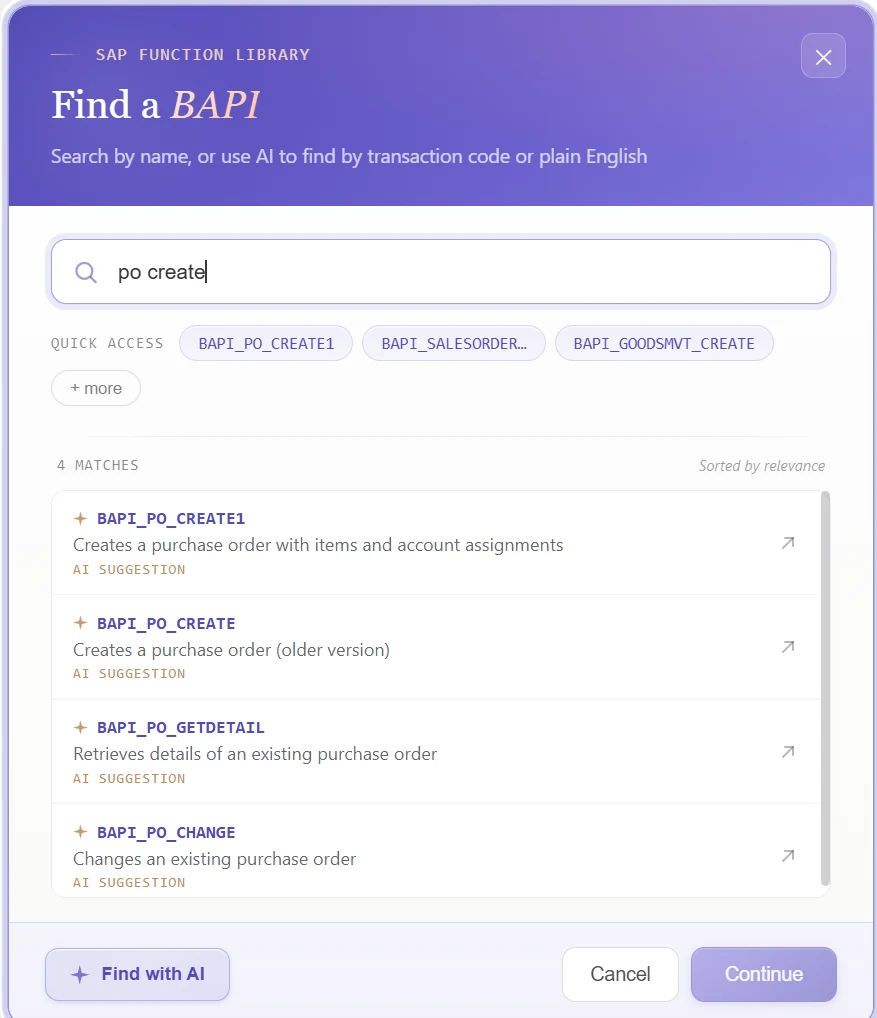
For recurring business transactions, a published SAP interface is usually the cleanest route. A BAPI does not bypass SAP. It calls into SAP's business logic and returns structured messages.
For example, purchase-order creation can use BAPI_PO_CREATE1, and accounting-document posting can use BAPI_ACC_DOCUMENT_POST. The Excel layer should prepare the request, call SAP correctly and explain the result. It should not reimplement SAP in Excel.
Map Excel columns to SAP fields
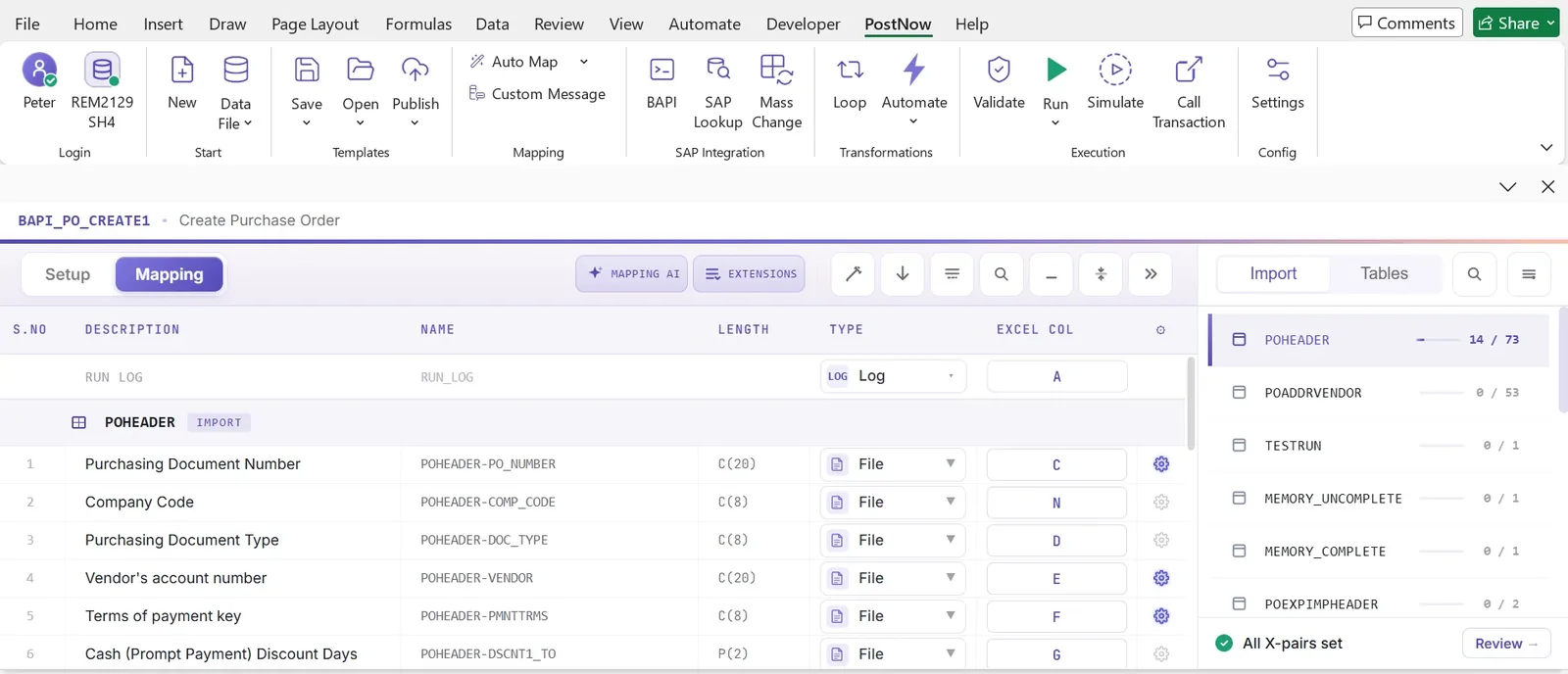
This is the part that looks trivial until you build one. A spreadsheet may contain business-friendly headings such as Company Code, Vendor, Posting Date, Amount and Cost Center. The SAP process may expect those values across multiple technical structures.
Purchase orders make the problem obvious. One Excel sheet may describe a PO header, multiple items, schedule lines, account assignments and conditions. Excel is flat. SAP business documents often are not.
Somebody therefore has to define what each Excel column means to SAP. In a one-off ABAP program that mapping is often hard-coded. In a reusable add-in, mapping should become configuration: map it once, test it, save it and use it again.
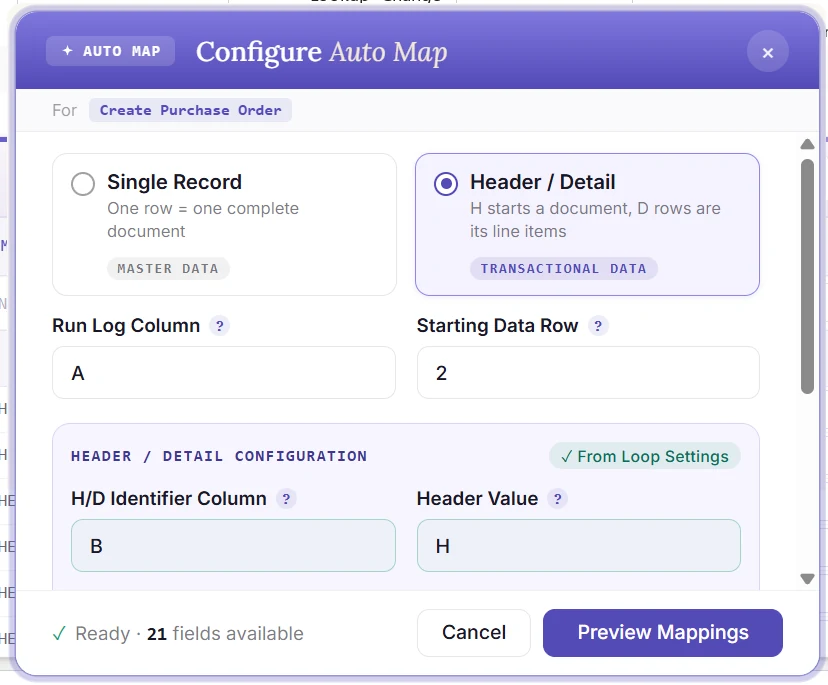
Header and detail documents need explicit grouping
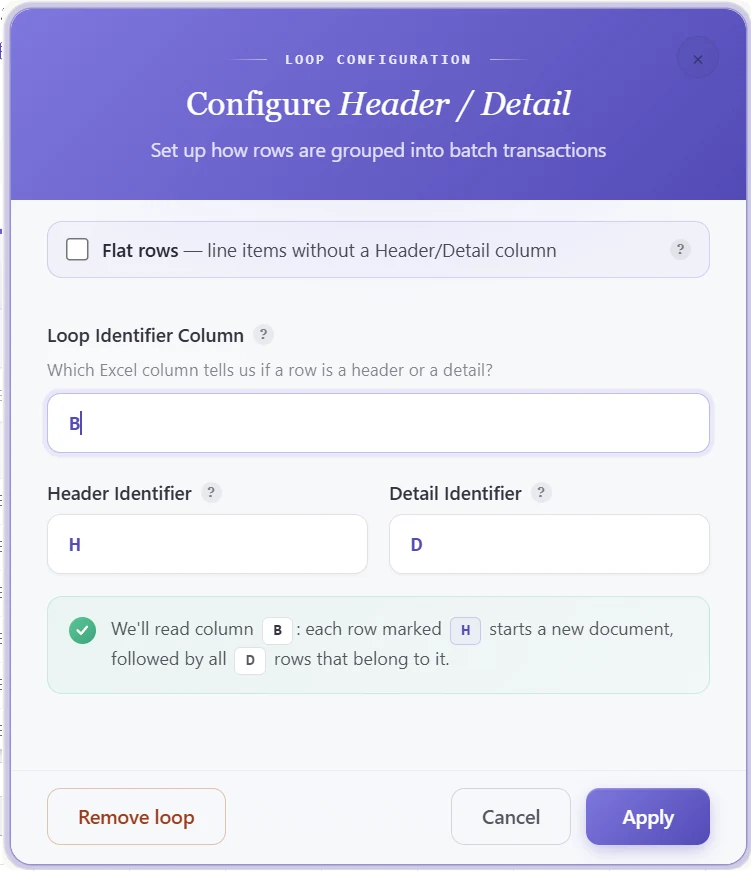
A common source of mistakes is assuming that one spreadsheet row always equals one SAP document. That can be true for simple master data, but transactional documents usually have a header/detail shape.
For a purchase order, one header row can be followed by several detail rows. The add-in needs to know where one document starts and which item rows belong to it. That grouping must be explicit enough to survive sorting, validation and retries.
AI can help with the boring part of mapping
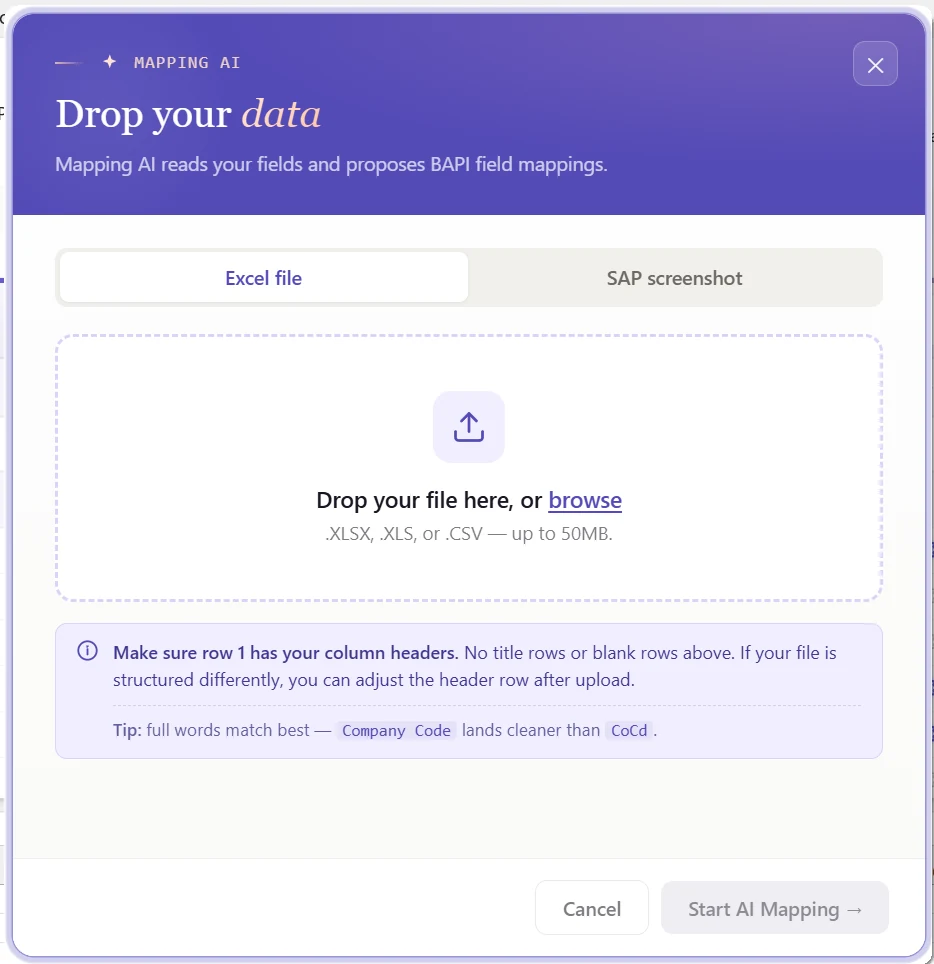
This is one of the places where AI earns its keep. If the spreadsheet already has headings such as Vendor, Company Code, Posting Date, Currency and Amount, an experienced SAP person can usually infer what most of them mean. The repetitive part is finding and assigning the technical SAP fields over and over.
Mapping AI in PostNow.ai analyzes spreadsheet headers and data and proposes likely mappings. The user reviews those suggestions before saving the template.
Validate Excel data before anything posts
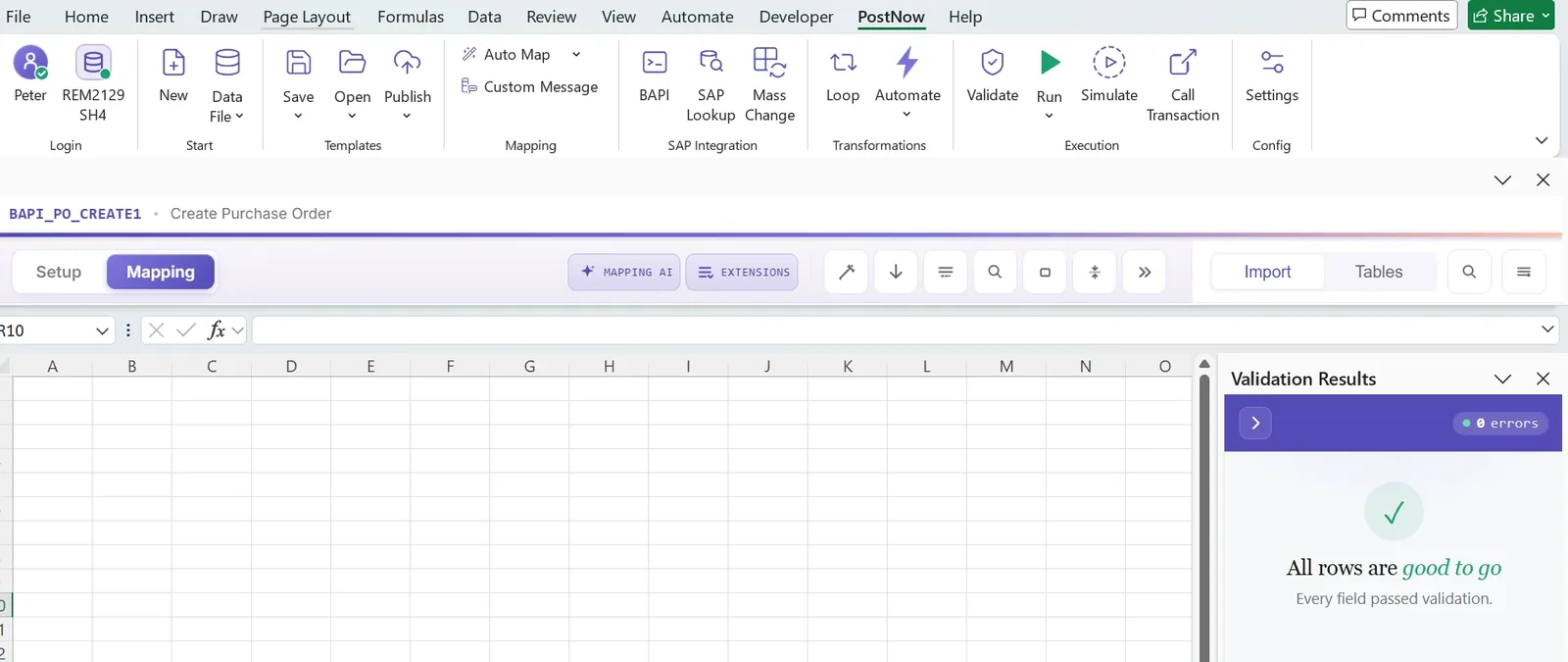
This is where an SAP Excel add-in either becomes useful enterprise software or becomes a faster way of creating problems.
Consider a 5,000-row workbook. One row contains an invalid cost center. Another has a closed posting period. Seventeen material numbers have lost leading zeros. Nine rows contain a plant/material combination SAP will reject. Two are duplicates.
You want to know that before the posting starts.
required fields, type, format
company code, plant, cost center
document type, configuration
live application validation
Spreadsheet validation catches missing values, bad dates and formatting problems. SAP-reference validation checks whether codes and master data actually exist. Business validation handles rules that vary by document type, account group, plant or company code. And where the underlying SAP process supports simulation, SAP itself can perform the final check without committing the transaction.
Return SAP results to the same spreadsheet
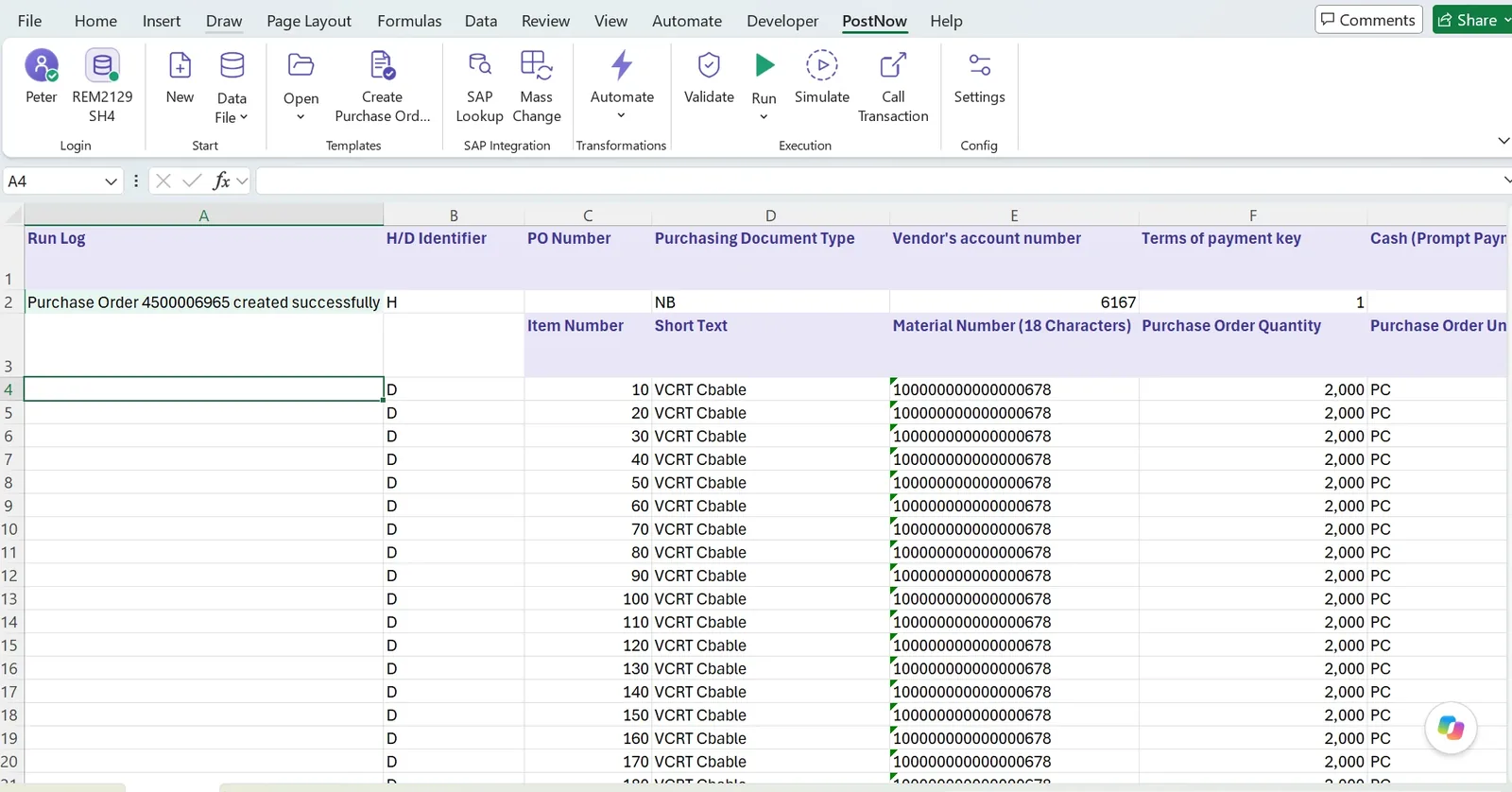
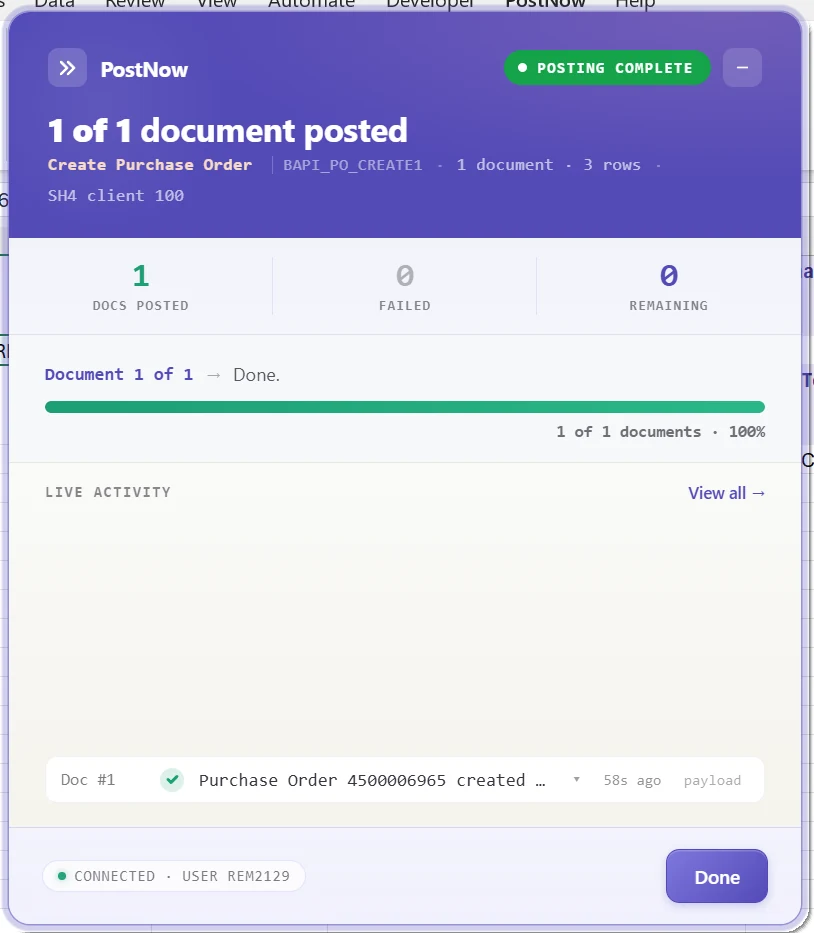
A batch is not finished when SAP says “success.” The user needs to know what happened to every source record.
| Row | Vendor | Amount | Status | SAP document |
|---|---|---|---|---|
| 118 | 100021 | 12,400.00 | Posted | 5100004412 |
| 119 | 100045 | 3,980.50 | Posted | 5100004413 |
| 120 | 100087 | 27,115.00 | Error | — |
| 121 | 100103 | 640.25 | Posted | 5100004415 |
Now row 120 can be corrected without touching the other three. Scale that to ten thousand records and row-level status stops being a convenience; it becomes the thing that prevents double posting.
A good run is designed for partial success. If 9,847 records post and 153 fail, the 9,847 stay posted. The 153 get corrected and retried. You do not re-run all 10,000 and hope nobody creates duplicates.
SAP errors should come back as data
SAP messages contain valuable information, but they are not always written for the person preparing a spreadsheet. The traditional support loop is familiar: SAP error → business user → SAP support → explanation → Excel correction → retry.
For a single row, that is irritating. For two hundred failed rows, it becomes a process. PostNow.ai includes AI Review to help explain SAP messages in plain language while preserving the original SAP response.
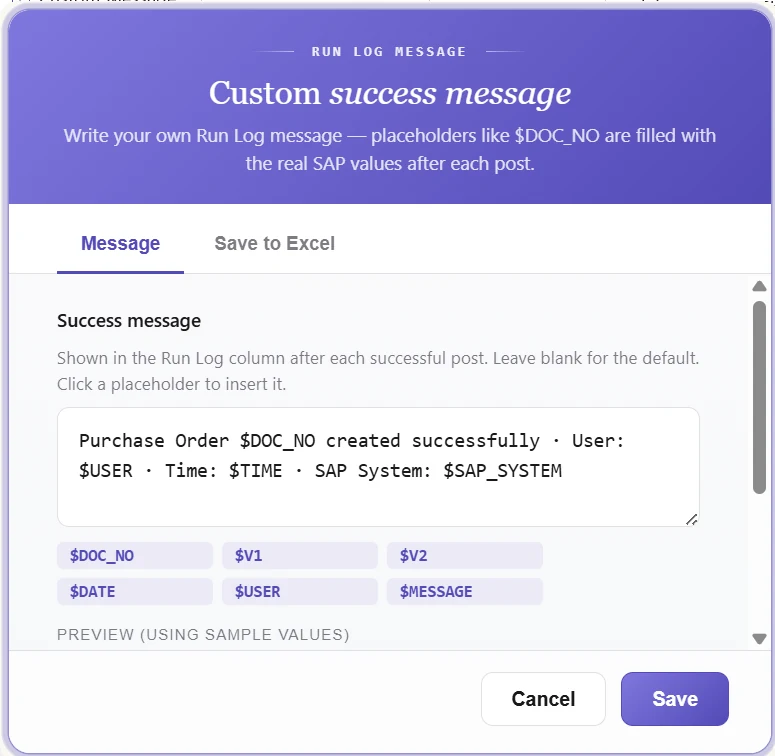
And for successful rows, the run log can be shaped into a useful business message rather than a technical code.
Update existing SAP data from Excel
Creation gets most of the attention, but mass change is often the stronger Excel use case. Imagine a master-data team needs to change payment terms for 2,000 vendors. You do not want them starting with an empty workbook and typing vendor numbers from memory.
A safer process is:
This pattern applies to materials, vendors, customers, Business Partners, cost centers, profit centers, pricing and many other master and transactional objects.
For mass changes, always keep the original values. If you are about to change 8,000 records, the before-image is not clutter. It is your recovery plan.
Report from SAP directly in Excel
The other half of an SAP Excel add-in is easy to overlook. Users do not only send data to SAP. They spend enormous amounts of time getting data out.
A familiar reporting workflow is: run an SAP report, export, open Excel, remove unwanted columns, fix formatting, add formulas and repeat next week. Sometimes a custom ABAP report exists mainly to put data into a format somebody can export to Excel.
A two-way SAP Excel integration changes the starting point:
PostNow.ai includes a prebuilt SAP report library for common Finance, Materials, Sales and cross-module needs. It also includes AI Query Pilot, which helps users describe the SAP data they need in plain language and build the query.
That changes the product model from an upload utility into something broader:
SAP → Excel → Work → Validate → SAP

The real value is the round trip
This is why I would not define an SAP Excel add-in as an “upload utility.” Upload is one direction. Most real business processes are loops.
Finance may extract open items, analyze them, prepare a posting, validate, post and reconcile. Master Data may extract materials, identify changes, edit, validate, update and verify. Procurement may review purchasing data, prepare orders, post and retrieve the result.
How PostNow.ai works inside Excel
PostNow.ai is designed around this two-way model. The user works from a task pane and ribbon inside Microsoft Excel rather than moving to a separate data-entry application.
For posting:
Excel → Map → Validate → Post to SAP → Review Results
For changes:
SAP → Excel → Edit → Validate → Update SAP
For reporting:
SAP → Query → Excel
The posting process uses SAP's own interfaces—published BAPIs where appropriate, or a recorded SAP transaction when no suitable BAPI exists. There are no direct table writes. The objective is not to build a second SAP system inside Excel. It is to let Excel become a better working surface for SAP.
Bring SAP data automation into Excel
PostNow.ai adds a working layer to Excel for SAP uploads, updates, validation and reporting.
Post spreadsheet data through SAP business logic.
Retrieve existing records, edit and send controlled changes back.
Check records before posting and use SAP simulation where available.
Bring SAP data into Excel without the repeated export-and-cleanup cycle.
Does an Excel add-in bypass SAP security?
It should not. This is one of the first questions an SAP team should ask when evaluating any Excel integration.
The spreadsheet should not become a back door around SAP authorization. If a user is not authorized to perform a business operation in SAP, installing an Excel add-in should not suddenly make that operation available.
PostNow.ai uses the user's SAP access and respects SAP authorization controls. The automation changes how efficiently an authorized operation is performed, not who is allowed to perform it.
Governance becomes more important at scale
The moment a spreadsheet can update thousands of live SAP records, convenience stops being the only design consideration. You also need to know who prepared the data, who approved it, who executed it, what existed before the change, which rows posted and which SAP documents were created.
- Reusable controlled templates. The technical mapping should not drift with every operator.
- Role separation. The person configuring a process does not have to be the person running it every week.
- Approval where required. High-impact changes need a release step before execution.
- SAP authorization enforcement. Excel never becomes a parallel security model.
- Run history and row-level results. Every source row needs an outcome.
- Before-images for mass changes. Keep the values you are about to overwrite.
PostNow.ai separates Designer and Operator responsibilities. A technical specialist can configure and prove the template; a Finance, Procurement or Master Data user can run the approved process without rebuilding the integration.
Excel formulas are useful — keep formula and value distinct
Excel is not simply a data container. People calculate things in it. A posting sheet might contain =ROUND(F2*G2,2) or an XLOOKUP that resolves a business code from a reference sheet.
The value sent to SAP may therefore be the result of a formula rather than something manually typed into the cell. An SAP Excel add-in should work with the resolved cell value rather than treating formulas as foreign text.
This sounds minor until you look at Finance, planning and pricing work. Removing formulas would remove one of the main reasons users wanted to work in Excel in the first place.
What happens when there is no suitable BAPI?
Not every useful SAP transaction has a clean published BAPI. That does not mean the process has to return to manual entry.
A transaction recording can capture the SAP screen sequence and replay it with values from Excel. This is often called BDC-style automation.
There is a trade-off. A BAPI is generally more stable because it is an application interface. A recording depends on the transaction screens. If those screens change, the recording may need to change too.
SAP Excel add-in vs custom ABAP upload program
I have spent enough time around SAP development to be cautious about claims that “no code” makes custom development unnecessary. It does not. There are plenty of requirements where custom ABAP is exactly the right answer.
The better question is: which part actually needs to be custom?
If a requirement contains unique business logic, custom development may make perfect sense. But many Excel upload programs repeatedly rebuild the same plumbing: read the spreadsheet, map columns, validate, call SAP, collect messages, write results, handle retries and keep a log.
If an organization has built that pattern fifteen times, the sixteenth requirement deserves a different question: should the business logic be custom, or should the Excel-to-SAP infrastructure be reusable?
An SAP Excel add-in makes the second part reusable.
SAP Excel add-in vs SAP GUI scripting
GUI scripting can automate SAP screens and has its place. It is also attractive because the first proof of concept can be built quickly.
The limitations become clearer with scale: screen dependencies, pop-up handling, timing issues, weaker structured error handling, difficulty maintaining many scripts and limited governance.
An Excel add-in using application interfaces where possible operates at a different layer. Rather than imitating a user's mouse and keyboard, it sends structured requests to SAP. For transactions without a suitable interface, recording can still be the fallback.
The distinction is not “screens are bad.” It is: use the most stable interface available for the job.
SAP Excel add-in vs manual CSV upload
CSV files are useful interchange formats. But CSV is not integration.
A CSV-based process may still require someone to export a template, populate it, save it, upload it, run a job, download an error file, find the bad records, correct another file and upload again.
That can be perfectly acceptable for occasional work. For a process somebody performs every day or every week, the friction becomes visible. Keeping preparation, validation, execution and results in the workbook reduces those handoffs.
SAP Excel add-in in ECC and S/4HANA
The business requirement for Excel integration exists in both SAP ECC and SAP S/4HANA. The technical details may change.
S/4HANA introduces the Business Partner model, changes some underlying data structures and increasingly exposes modern APIs. But one architectural principle travels well: integrate through SAP's supported business logic rather than tying automation to database tables or fragile UI assumptions.
| Area | SAP ECC | SAP S/4HANA | What should remain consistent |
|---|---|---|---|
| Business interfaces | BAPI, RFC, classic transactions | BAPI, APIs, services, transactions | Use supported application logic |
| Customer/vendor model | Separate master objects | Business Partner model | Re-prove mappings during migration |
| Excel experience | Upload, update, validate, report | Upload, update, validate, report | The user workflow can stay familiar |
PostNow.ai supports both SAP ECC and SAP S/4HANA. The appropriate interface can differ by object, but the Excel-based working model remains consistent.
What to look for in an SAP Excel add-in
If I were evaluating one for an SAP landscape, I would ask these questions before looking at the demo polish.
| Question | Why it matters |
|---|---|
| Does it use SAP business logic? | Avoids unsafe database-level updates. |
| Does it support ECC and S/4HANA? | Protects the investment across landscapes and migrations. |
| Can it validate before posting? | Prevents cleanup instead of accelerating it. |
| Does it return row-level results? | Makes partial failures manageable. |
| Can failed rows be retried independently? | Prevents accidental double posting. |
| Can it update existing SAP records? | Covers mass maintenance, not only creation. |
| Can it retrieve SAP data into Excel? | Enables the full SAP ↔ Excel workflow. |
| Does it respect SAP authorizations? | Excel must not bypass SAP security. |
| Are mappings reusable? | Turns projects into repeatable operating processes. |
| Can business users run approved templates? | Removes IT as the recurring bottleneck. |
| Is there an audit trail? | High-volume changes need traceability. |
| What happens when no BAPI exists? | Determines real transaction coverage. |
Common mistakes when connecting Excel to SAP
- Treating Excel as the system of record. It is the working interface; SAP remains authoritative.
- Validating only spreadsheet syntax. A value can be valid Excel data and invalid SAP data.
- Giving the integration excessive SAP permissions. Automation should remain within the same authorization model as the business process.
- Re-running successful records. Every row needs an outcome so successful transactions cannot be posted twice.
- Hard-coding every new requirement. If each workbook becomes another development project, the operating model is not reusable.
- Ignoring SAP → Excel. If users still export and clean data before every update, only half the problem is solved.
A practical SAP Excel workflow
A mature process usually looks like this:
Start with the workbook
The business prepares or retrieves the data in Excel.
Select the SAP process
Use a saved template or configure the required BAPI, API or transaction.
Map the columns
Connect business-friendly spreadsheet headers to SAP fields and structures.
Validate
Check spreadsheet structure, SAP reference values and business rules.
Review exceptions
Correct flagged rows in Excel before they become SAP corrections.
Simulate where possible
Let SAP perform its own checks before committing the transaction.
Post or update
Send only valid records through the appropriate SAP interface.
Return the results
Write status, messages and SAP document numbers back to Excel.
Retry failures
Correct only the failed rows and process them again.
Keep the run history
Preserve enough information to explain what happened later.
The technology matters. But this sequence matters more. A fast integration wrapped around a poor process simply produces poor data faster.
The complete SAP Excel integration picture
CONNECT
Excel ↔ PostNow.ai ↔ SAP
MAP
Excel columns → SAP structures
VALIDATE
Structure → SAP values → business rules → simulate
POST
BAPI / API → BDC fallback
RESULTS
Success → document number
Failure → message → retry
ROUND TRIP
SAP → Excel → edit → SAP
ECC & S/4HANA · SAP authorizations respected · No direct table writes
Frequently asked questions
What is an SAP Excel add-in?
Can Excel connect directly to SAP?
Can I upload Excel data to SAP?
Can I mass upload data from Excel to SAP?
Can I update existing SAP data from Excel?
Can I call an SAP BAPI from Excel?
Can I use Excel with SAP without writing ABAP for every upload?
Can I run SAP reports in Excel?
Does an SAP Excel add-in bypass SAP authorizations?
Does PostNow.ai write directly to SAP tables?
Does an SAP Excel add-in work with SAP ECC?
Does an SAP Excel add-in work with SAP S/4HANA?
What happens if some rows fail?
Is an SAP Excel add-in better than a custom ABAP program?
What SAP processes can be automated from Excel?
The bigger picture
Excel is not going away from SAP operations simply because another interface exists. And it does not need to.
The more useful question is whether people should continue spending their time manually transferring information between two systems that already contain the data.
A good SAP Excel add-in leaves each platform doing what it does well. Excel remains the flexible working surface. SAP remains the system of record and the owner of business logic. The integration handles what sits between them.
For a one-off task, that may save a few hours. For a Finance, Procurement or Master Data process repeated every week, it changes the operating model entirely.
And once the connection works in both directions—SAP → Excel → Work → Validate → SAP—you are no longer just automating an upload. You have turned the spreadsheet into a governed front end for SAP.