SAP pricing condition automation means maintaining condition records, prices, discounts, surcharges, and freight, from a spreadsheet instead of keying each one through VK11. PostNow runs it from Excel by capturing the transaction once and replaying it: each condition record is a row, the recording enters the key, validity, and rate for every row, the values are checked, and the batch posts in one pass, with any SAP error put into plain language.
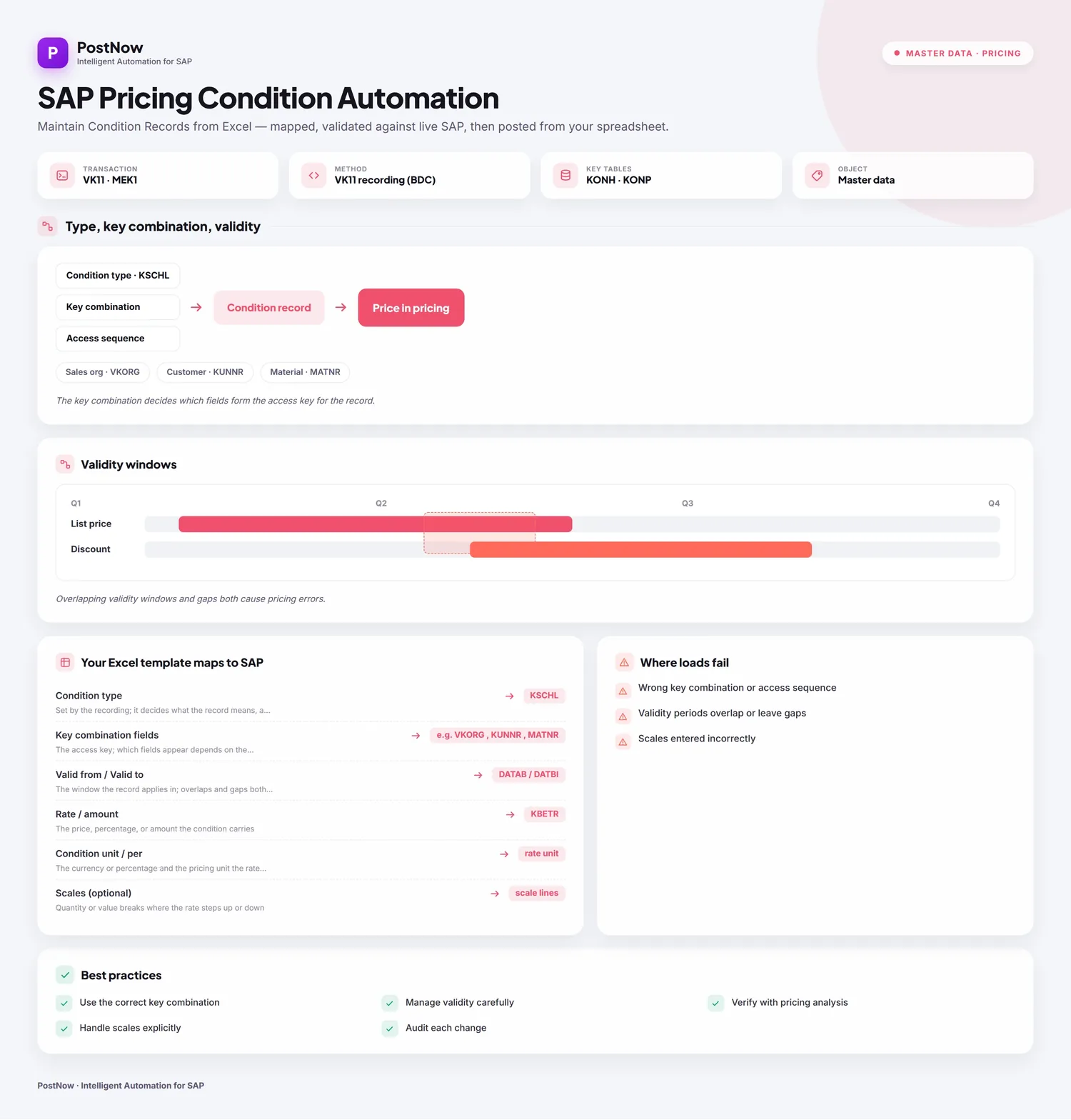
What follows is a twelve-step worked example of a pricing condition upload from Excel to SAP, covering fresh records and new validity periods for existing ones. Hold on to the recording and mapping and you have a pricing condition Excel template ready for the next price list or annual repricing. The method holds on classic ECC and on S/4HANA, where Sales and Distribution still maintains condition records behind VK11. Once the initial setup is done, the people loading the data write no ABAP and wait on no developer.
Why automate condition records rather than keying VK11
Maintaining a price manually means opening VK11, choosing the condition type, selecting the key combination, then entering each record with its key, its validity dates, and its rate. A few prices are quick. A full price list, a quarterly discount refresh, or a year-start repricing across thousands of customer-material combinations turns into a long, error-prone stretch of typing, and that is where a wrong validity date or a misplaced rate slips through.
A pricing condition upload takes the typing away. The records live in Excel and the recording posts the whole price list in one run. For a bulk pricing upload at go-live or a mass condition upload at repricing time, the slow parts, capturing the transaction, matching columns to fields, formatting rates and dates, and reading SD messages, are handled for you. The twelve steps below set out the method in full.
Before you start: what you need
- Your condition records in Excel, one per row, with a column for each key field of the combination, plus the validity dates and the rate.
- SAP authorization matching
VK11andVK12for the condition types and sales areas you are loading. - PostNow in Excel, wired to your SAP system. Its supporting components are installed in SAP once at setup, and the price loads then run from the task pane.
Your pricing condition Excel template: the fields SAP expects
A condition record is a key, a validity window, and a rate, so the template lays out the key fields of the chosen combination followed by the dates and the value. These are the fields a condition upload relies on; carry them, and confirm the customers, materials, and sales area the key references already exist.
| Excel column | SAP field | Why it matters |
|---|---|---|
| Condition type | KSCHL | Set by the recording; it decides what the record means, a price, a discount, a surcharge |
| Key combination fields | e.g. VKORG, KUNNR, MATNR | The access key; which fields appear depends on the combination chosen |
| Valid from / Valid to | DATAB / DATBI | The window the record applies in; overlaps and gaps both cause trouble |
| Rate / amount | KBETR | The price, percentage, or amount the condition carries |
| Condition unit / per | rate unit | The currency or percentage and the pricing unit the rate applies to |
| Scales (optional) | scale lines | Quantity or value breaks where the rate steps up or down |
VK11, and PostNow uses a transaction recording to carry them. You record one VK11 entry, choosing the condition type and the key combination and entering a record with its validity and rate, while PostNow captures the screens and fields. That recording becomes a reusable template the add-in replays for every row, the values pulled from your columns, each pointed at the same condition table. Step 2 is where you make it.The pricing condition upload, step by step
Lay out and open your sheet
Put each condition record on a row under headers such as Sales Org, Customer, Material, Valid From, Valid To, and Rate. Open the workbook and launch the PostNow task pane next to it.
Record the VK11 transaction
Because pricing runs through the condition technique, you capture one entry. Start a recording, run a single VK11 entry, and PostNow follows what you do:
- It captures the condition type and the key combination you select
- It records the key fields, the validity dates, and the rate you enter
- One capture is enough; the recording then drives every record in the sheet
Save it and PostNow makes it a reusable template, so maintaining prices from Excel to SAP never again means working through VK11 yourself.
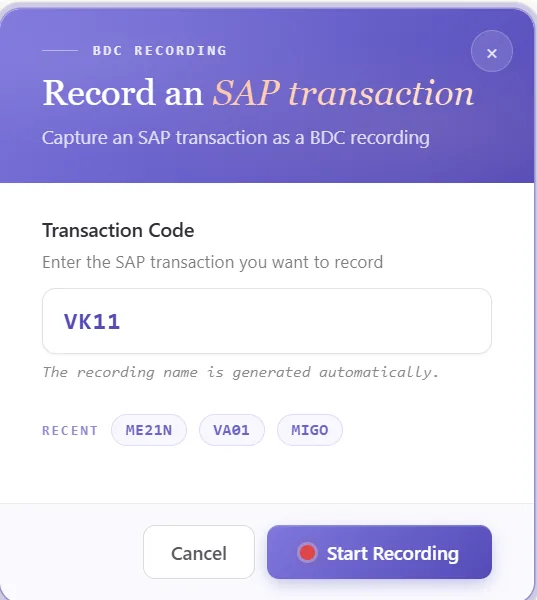
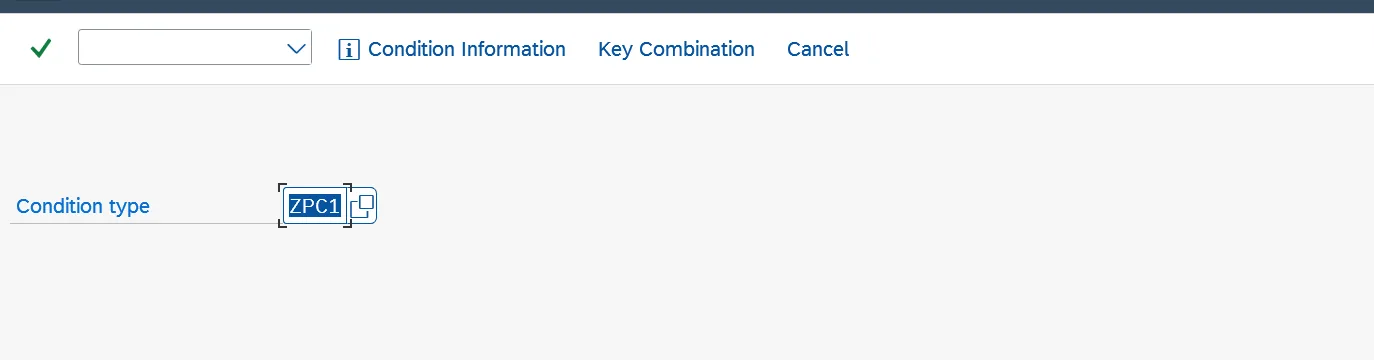
Look over the recorded screens and fields
PostNow shows the recording as the choices it made and the fields it will enter on each record. Because it follows the real VK11 flow, a quick read shows what is captured:
That overview shows, before any mapping, which column is part of the key and which sets the validity or the rate.
Open the Mapping Designer
The recording populates the Mapping Designer with a row for each captured field. Two points apply to pricing:
- Added fields are detected. Extra key fields your chosen combination exposes are picked up, ready to map.
- You can add more manually. Any field the recording did not reach, such as a scale line, you place yourself.
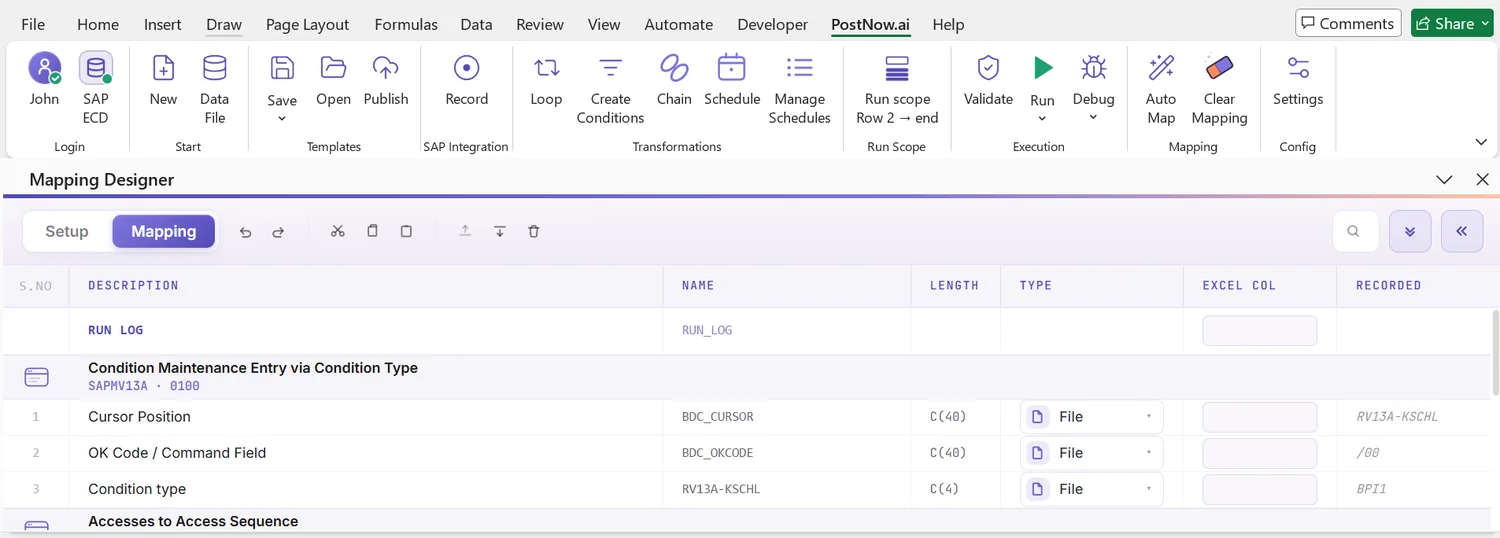
Match columns with Mapping AI AI
Now tie the recording to your spreadsheet. Mapping AI reads your headers, or a screenshot you paste, and proposes an Excel column for each recorded field, which you confirm or adjust, a handy saving when a record carries several key fields plus its validity and rate.
Auto Map and stamp the headers
Run Auto Map to lock the mapping in. Each recorded field is bound to its column and SAP-tagged headers are written into the sheet, so the workbook becomes the template and stays aligned with the recording.
Set formatting and validity dates
Each field's properties govern how its value is typed into the screen: upper case on the key codes, the right decimals on the rate, leading zeros on customer and material numbers, defaults, and regex. The validity columns matter most here, set the date format on Valid From and Valid To so each record lands in the window you intend, since an overlapping period is the quietest way to misprice.
When the recording updates an existing record rather than creating one, you flag only the fields the replay should overwrite, so a repricing run touches just the rate and dates you mean to change.
Check the data in Excel first
It is worth checking before the replay: a pricing error tends to halt the screen once a record has already failed. Validate runs that check up front, measuring every row against SAP's length, format, and required-field rules and flagging anything off, so the sheet is right before the recording runs.
Confirm against live SAP
Neat formatting still will not prove a key value exists, a customer or material can read fine and be missing. To test it, open the field's properties, switch on field validation, and name the check table and field, a customer against KNA1, a material against MARA, or the sales organisation against its setup. Click the cell, run Validate master data, and PostNow asks live SAP if the value is on file.
Shape the load with loops and conditions
When the sheet calls for more than a flat replay, prepare it first:
- Loops: the recording steps down your rows, entering one condition record after another from the same captured flow.
- IF conditions: run only the rows that qualify, for instance posting a record only where a rate is present, or skipping rows whose validity has already lapsed.
Set the scope, run, and review AI
Choose the range with Run Scope, one test record ahead of the rest, and press Run. A few things help:
- Foreground replay: watch the recording type into
VK11for the first record to confirm it behaves. - Run log: every outcome shows in real time and drops into a log column next to its row.
- AI error review: AI Review reads the SD message and says, plainly, which field stopped the record.
- Per-row result: every record carries its own outcome, so a failure points straight at the row and field to fix.
Publish and roll it out to the team
When the run is clean, publish the script. The recording and mapping become something colleagues run unchanged, they open it, paste their records, and post, with nothing to rebuild and no need to understand the condition technique behind it. One setup becomes the pricing team's standard way to maintain condition records.
Let's talk
Bring a real price list and a live SAP connection to a working session. We will record the transaction, map the key and rate, validate, and post it for real, with AI taking the strain. No slide decks.
Frequently asked questions
What is SAP pricing condition automation?
VK11. PostNow records a VK11 entry once and replays it for every row in Excel, while AI maps the fields, checks the values, and explains any error, with no ABAP for the people loading the data.How do you upload condition records from Excel to SAP?
VK11 entry for the condition type and key combination once, map your columns to the recorded fields, validate, then replay the recording for the whole list. PostNow checks the data against live SAP, so there is no VK11 keying and no ABAP.How are the condition type and key combination handled?
VK11 for one condition type and choose its key combination, which is the access into the condition table, and the recording then enters records at that combination for every row. To load several condition types or combinations, you keep a recording for each, since each one targets a different condition table.Is there a template for uploading prices to SAP?
Can you mass-update prices for a new validity period from Excel?
VK11 recording, which writes a record for the new period. It is the Excel route to a mass price update or an annual repricing without keying VK11 manually.