SAP material master automation is the practice of building and updating material master records through a programmatic interface, rather than typing each one into MM01 view by view. PostNow brings that work into Excel: your materials sit in spreadsheet rows, and the add-in posts them to SAP through the standard BAPI_MATERIAL_SAVEDATA, lining each column up with its field across basic, plant, valuation, and sales data, flipping the update indicators on anything you change, checking the values, and writing every row in one controlled run, turning any SAP error into plain language along the way.
What follows is a worked example in twelve steps: a material master upload from Excel to SAP that handles brand-new parts and adds extra plants or sales areas to materials you already hold, all in the same pass. Save the mapping once and it becomes a material master Excel template you can point fresh data at next month. None of it is release-specific, classic ECC and S/4HANA both create materials with MM01 sitting on top of BAPI_MATERIAL_SAVEDATA, and the only practical difference in S/4HANA is room for a forty-character material number. Setup happens once; after that, whoever runs the load needs neither ABAP nor a developer.

Why automate material creation instead of working through MM01
Keying a material by hand starts with choosing a material type and industry sector in MM01, then paging through whichever views apply, basic data, classification, MRP, purchasing, accounting, sales, storage, saving, and beginning again for the next part number. For a handful of items it is merely dull. Scale it to a plant opening, a product-line launch, or a migration onto S/4HANA and it turns into weeks of repetitive entry, with material groups, units of measure, and valuation classes quietly drifting out of line.
That is the argument for a material master upload. Leave the data where it already lives, in Excel, and let each row land in SAP through one supervised run. The repetitive parts, choosing the function, aligning fields to views, switching on update flags, decoding SAP's error text, stop being yours to carry. Whether the task is a one-off bulk material creation in SAP or a recurring mass material upload, the twelve steps below are the entire routine.
Before you start: what you need
- Your materials in Excel, one row per material for a straightforward basic-data load, a column for every field you plan to fill, and additional rows wherever a single material reaches across several plants or sales areas.
- The right SAP authorization, equivalent to what
MM01andMM02grant you, covering each view and every organizational level (plant, sales organization, valuation area) that is in scope for the load. - PostNow installed in Excel and pointed at your SAP system. A small set of function modules goes into SAP once at setup; from then on the whole process below happens inside the task pane.
MM01 for creation and BAPI_MATERIAL_SAVEDATA for the post. S/4HANA just allows a longer forty-character material number, so nothing in the steps below shifts between releases.Your material master Excel template: which fields SAP insists on
Because a material is split into views, the mandatory fields shift with the material type and industry sector you select at creation. The columns below are the backbone of any material upload template, so carry them at a minimum, and make sure each referenced value is already live in SAP.
| Excel column | SAP field | Why it matters |
|---|---|---|
| Material number | MATNR | Omit it for internally numbered ranges; populate it only when the type uses external numbering |
| Material type | MTART | Sets the number range, the available views, and the required fields |
| Industry sector | MBRSH | Fixed at creation; governs how screens and fields are laid out |
| Base unit of measure | MEINS | Required on basic data and has to exist in T006 |
| Material group | MATKL | Has to be present already in T023 |
| Plant | WERKS | Must exist in T001W before the plant, MRP, and storage views will save |
| Valuation class | BKLAS | Has to align with the material type so account determination resolves |
BAPI_MATERIAL_SAVEDATA covers both creation and change across all views, while BAPI_MATERIAL_SAVEREPLICA is the heavier-duty option aimed at migration and replication. Each runs off a header (HEADDATA) and one structure per view, CLIENTDATA, PLANTDATA, VALUATIONDATA, SALESDATA, paired with an X structure whose only job is to mark which fields an update should touch. That is why this guide invokes the BAPI straight away instead of recording MM01: Step 2 has PostNow's function finder lock in BAPI_MATERIAL_SAVEDATA and hand back its structures, with no batch input or recording in sight.The material master upload, one step at a time
Set up and open your spreadsheet
Give each material its own row, with headers along the lines of Material, Material Type, Industry Sector, Base Unit, Material Group, Plant, and Valuation Class. Open the workbook, then start the PostNow task pane beside it.
Pick the material BAPI in the function finder
Since a standard BAPI already exists, there is no transaction to record, you point straight at the function. Open the function finder and settle on the right one:
- Look up the material function and choose
BAPI_MATERIAL_SAVEDATA, which serves both creation and change - Heading into a migration or a large replication run? Reach for
BAPI_MATERIAL_SAVEREPLICA, which moves the same data over a broader field set - Create versus change is decided by the update flags you set later, not by switching functions, so a single selection covers both
Confirming the function brings back the BAPI structures, the header plus every view segment, lined up for mapping. PostNow remembers the choice, so each row replays it rather than making you walk through MM01 again.

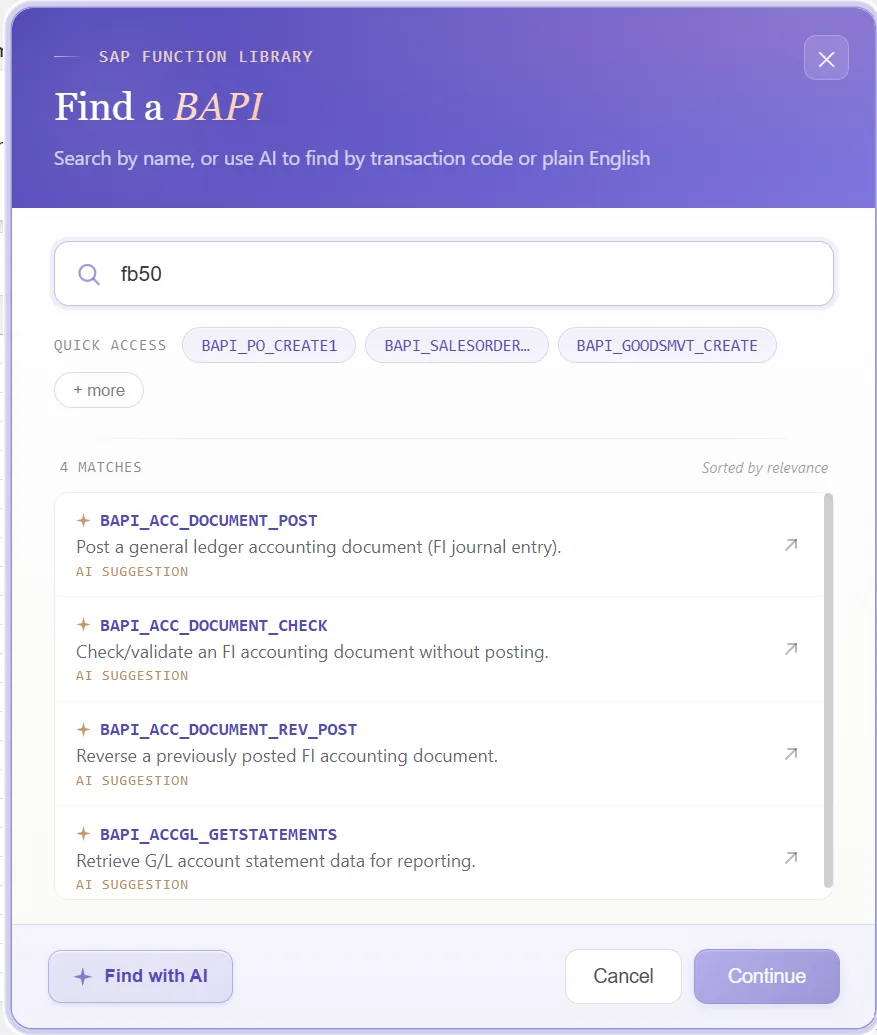
Read the BAPI structures it returns
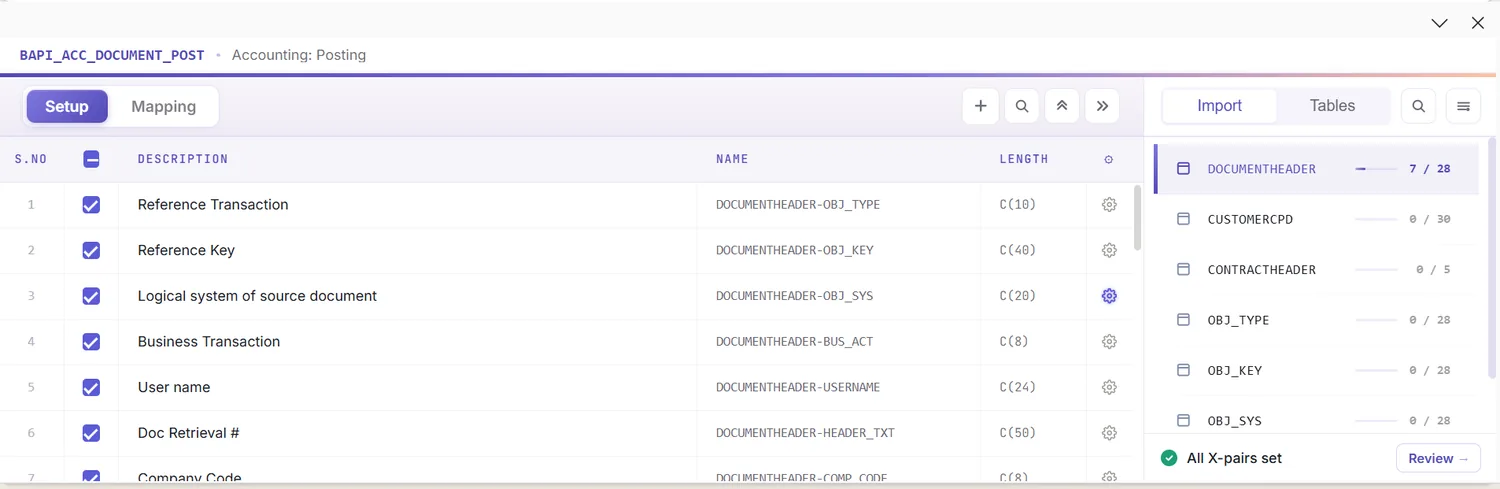
What comes back is the set of BAPI structures: a header and a segment for each view. Because they mirror the tables sitting under the material master, one look tells you what is held at client level, what repeats per plant or sales area, and where the update switches live:
With that picture in hand, you already know how your columns will line up against SAP before a single mapping is drawn.
Open the Mapping Designer
Selecting the BAPI fills the Mapping Designer with one line per field. Two details matter for materials:
- Extensions come along. The designer tries to pull in your append and extension structures on its own, so custom material fields appear without a hunt.
- Manual additions are allowed. Whatever the automatic pass misses, you slot in by hand, which lets standard views and custom data ride in the same load.
Let Mapping AI match the columns AI
Next, tie the structures to your data. Mapping AI pairs each SAP field with the most likely Excel column, reading either your headers or a screenshot you paste in, then puts its suggestions up for approval, a genuine relief when one material carries dozens of fields spread over several views.
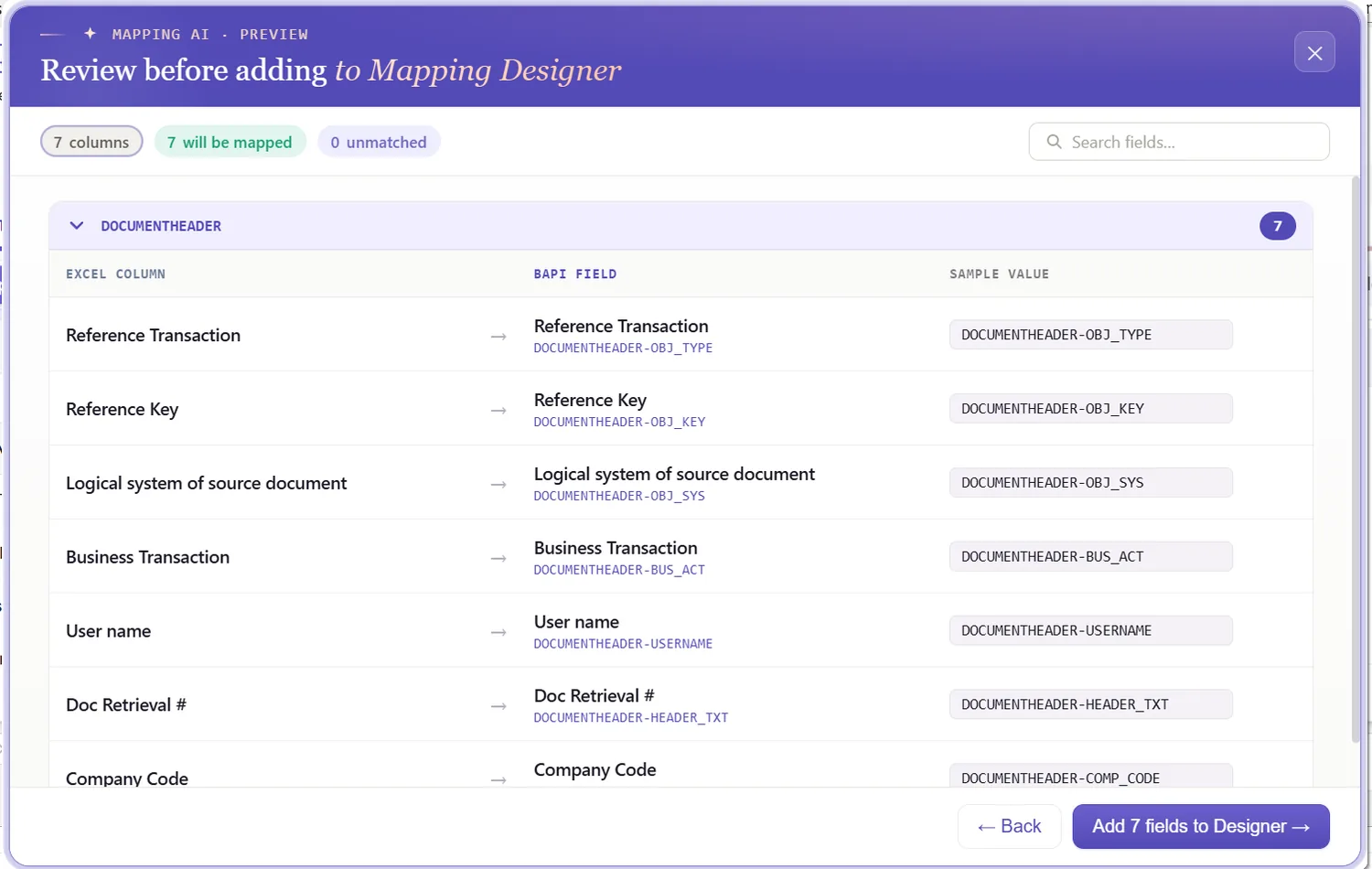
Run Auto Map and write the headers back
Trigger Auto Map to lock the mapping into the sheet. It connects each field to its column and stamps SAP-tagged headers across the top, at which point the workbook itself is the template. From here, sheet and BAPI structure move together.

Apply formatting and let the X flags set themselves
A field's properties decide how its value is shaped on the way out: leading zeros on the part number, upper case on units and codes, trimmed spaces, a date format, defaults, and regex.
Then there is the classic chore. BAPI_MATERIAL_SAVEDATA only writes a changed value when its twin in the X structure (CLIENTDATAX, PLANTDATAX, and the rest) is set to X. Toggling those by hand across many fields is slow and easy to get wrong, so PostNow spots the fields you have edited and flips their X markers for you, which means a mass change no longer drags a pile of manual indicators behind it.
Check the data inside Excel first
The reason to do this now: a failed post tends to surface an opaque SAP message after the fact, once the row has already bounced. Running Validate heads that off, PostNow runs each row past SAP's length, format, and required-field rules and marks the offending cells, so the data is clean before it ever leaves the sheet.
Confirm values against the live system
Well-formatted is not the same as real, a material group can look perfect and still be absent from the target client. To test existence, switch the check on first: in the field's properties, enable field validation and give it the check table and field to consult, say a material group against T023, a unit against T006, or a plant against T001W. With that set, pick the cell and run Validate master data; PostNow queries live SAP and reports whether the value is there and active.
Reshape the data with loops and conditions
Few material loads are a flat list, so arrange the data before the run:
- Loops (header / detail): bundle rows so a single material header drives many detail lines, the same part across several plants, storage locations, or sales areas. You mark the repeating rows; the loop does the grouping.
- IF conditions: act only on the rows that qualify, keyed off a cell value, building the sales view, for instance, only where a material is flagged sellable.
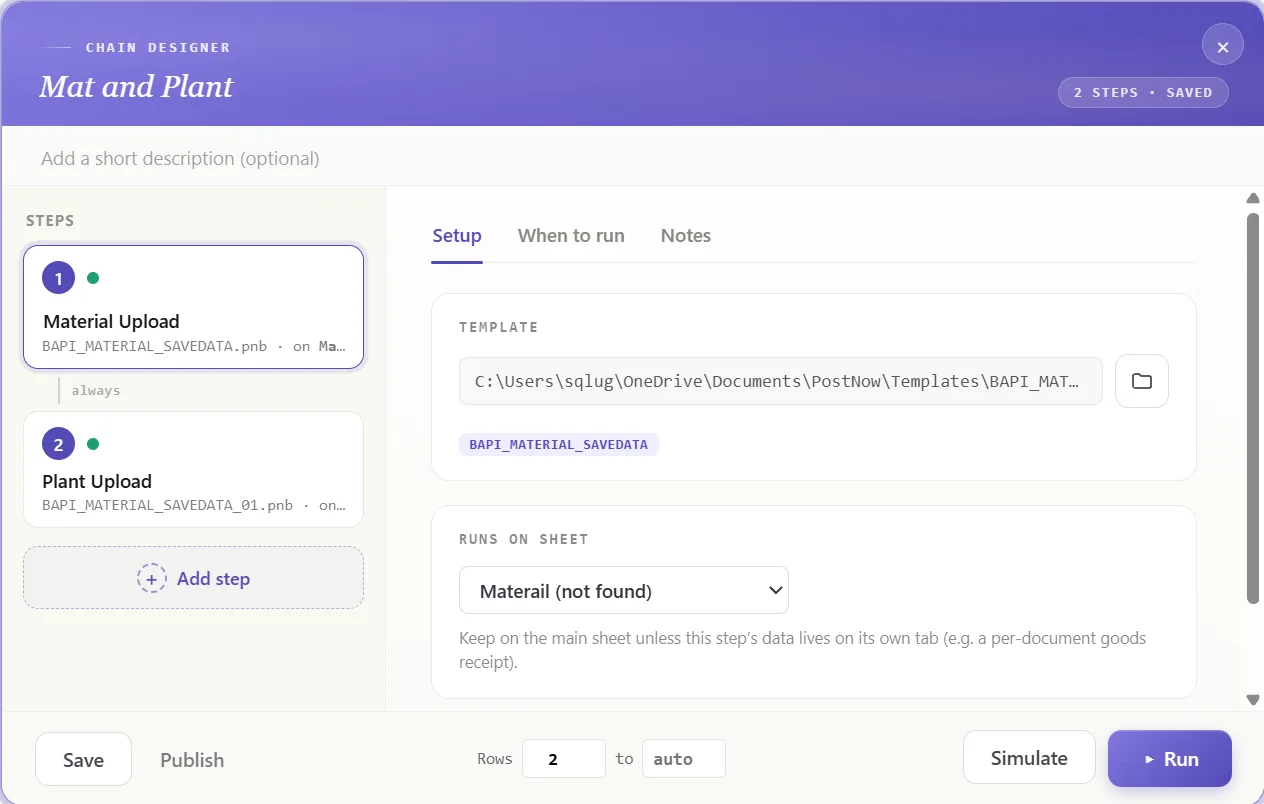
Choose the scope, post, and review the run AI
Set the range under Run Scope, a single test row before the full set, and press Run. A few things have your back:
- A full run log: results stream into the run window row by row, and the same detail drops into a log column in Excel beside each one.
- The payload view: open the exact data sent to SAP for any row. Without it a failure is opaque; with it, you can see precisely which structures crossed the wire.
- AI error review: when the message is impenetrable, AI Review reads the
BAPIreturn and lays out, in plain English, what went wrong and where to look. - Per-row return detail: the BAPI hands back a
RETURNtable for every row, and PostNow pins each message to its row so you can tell which view or field tripped a material.
Publish it and hand it to the team
When the run is clean, publish. That converts your configuration into a script anyone can use: a colleague opens it, drops in their data, and posts, with no mapping to rebuild and no need to know which BAPI sits underneath. A one-time build becomes a standard material process the whole team can repeat.
Let's talk
Bring a genuine material file and a live SAP connection to a working session. We will map it across every view, validate it, and post it for real, with AI carrying the load. No slide decks.
Frequently asked questions
What is SAP material master automation?
MM01. In practice with PostNow, the materials stay in Excel and reach SAP in a single governed run via BAPI_MATERIAL_SAVEDATA, while AI takes care of matching fields, checking values, and decoding errors.How do you upload materials from Excel to SAP?
BAPI_MATERIAL_SAVEDATA, raises the update flags, and checks against live SAP, so nothing is keyed by hand and no ABAP is written.Which BAPI creates SAP material master records?
BAPI_MATERIAL_SAVEDATA handles creation and change across every view, with BAPI_MATERIAL_SAVEREPLICA available for high-volume migration and replication. Both pair a header with one structure per view and an accompanying X structure that flags the fields to write. PostNow's function finder lands on the correct one, so calling it yourself is never required.Is there a template for uploading material master data to SAP?
Can you extend an existing material to a new plant or sales area from Excel?
X update fields and posts just those segments through BAPI_MATERIAL_SAVEDATA, so a product reaches additional organizational levels in one run.