SAP Customer Master Data Report
A customer master report joins SAP's separate customer tables into one flat Excel sheet keyed by customer number, so general, company code and sales-area attributes sit on a single row.
- PostNow ships this report out of the box – pick it, set filters, run, and it lands in Excel; no SE16, joins or ABAP.
- The data spans several tables. It joins KNA1, KNB1, KNVV, KNVP, TVKOT / TSPAT on KUNNR and resolves the text lookups.
- The standard route is manual. Teams use XD03/VD03 for a single record, then SE16 or SQVI to stitch tables together in Excel.
- You get clean, labelled columns. KUNNR, NAME1, ORT01, LAND1, STCD1, VKORG and more, each with a plain-English heading.
- Refreshable, not a one-off dump. Rerun the report to pull the latest, with your own SAP authorizations enforced. Works on ECC and S/4HANA.
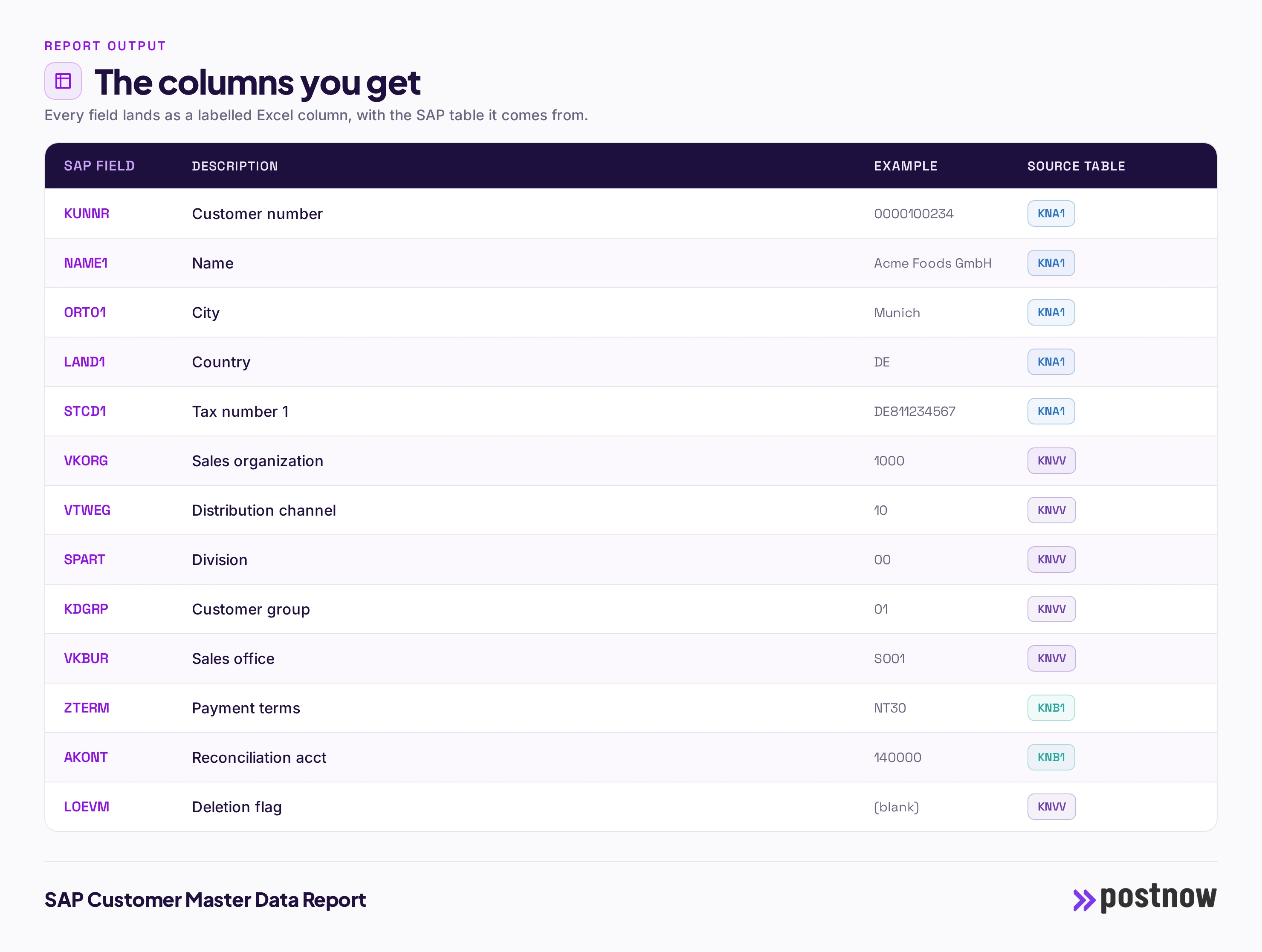
What the customer master report shows
A SAP customer master data report answers a simple question that SAP makes surprisingly hard: give me every customer master record, with all the attributes that matter, in one place I can filter and share. On screen, SAP shows one record at a time and splits its attributes across several views. This report flattens all of that into a single Excel sheet, one row per record, with the codes turned into readable labels.
Because the output is a plain sheet, it becomes the starting point for the work people actually do with it: a data-quality review, a cleanup before a migration, a hand-off to an auditor, or a source for a pivot. The value is not just the extract, it is that the extract is complete and consistent every time you run it.
The SAP tables behind it
The customer is not stored in one place. KNA1 holds the general, client-level record: name, address, country and tax numbers, keyed by the customer number KUNNR. Financial attributes such as the reconciliation account and payment terms live in KNB1, keyed by KUNNR plus company code BUKRS, so a customer extended to two company codes has two KNB1 rows. Sales attributes such as the sales office, customer group and division live in KNVV, keyed by KUNNR plus the sales area (VKORG, VTWEG, SPART). Partner functions such as the ship-to and bill-to sit in KNVP against the same sales area. Readable labels for the sales org and division come from the text tables TVKOT and TSPAT.
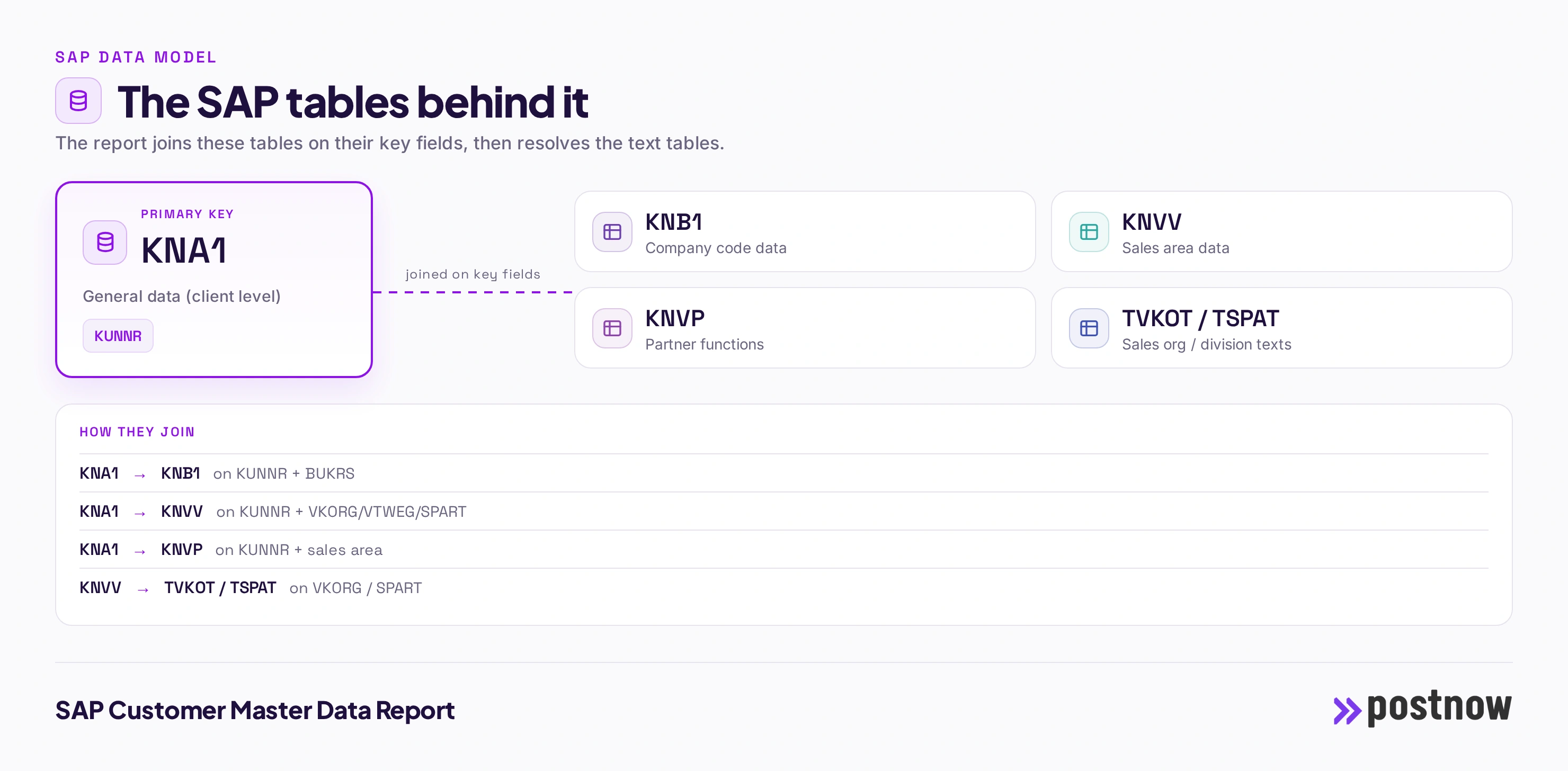
The joins are the whole reason this is worth automating. Miss one and the report is subtly wrong; get the key fields slightly off and rows fan out or drop. Doing it once, correctly, and then reusing it is what turns a fragile spreadsheet exercise into a reliable report.
The columns you get
Every column below is a real SAP field, labelled in plain English, with the table it is read from. These are the fields most teams want on a customer master report; a tool like PostNow lets you add or remove columns without touching the underlying join.
| SAP field | What it is | Source |
|---|---|---|
| KUNNR | Customer number | KNA1 |
| NAME1 | Name | KNA1 |
| ORT01 | City | KNA1 |
| LAND1 | Country | KNA1 |
| STCD1 | Tax number 1 | KNA1 |
| VKORG | Sales organization | KNVV |
| VTWEG | Distribution channel | KNVV |
| SPART | Division | KNVV |
| KDGRP | Customer group | KNVV |
| VKBUR | Sales office | KNVV |
| ZTERM | Payment terms | KNB1 |
| AKONT | Reconciliation acct | KNB1 |
| LOEVM | Deletion flag | KNVV |
Building it yourself: XD03/VD03, SE16 or SQVI
The standard display transactions XD03 and VD03 show one customer at a time, which is fine for a lookup and useless for a list of three thousand. SE16 lets you browse a single table such as KNA1, but it will not join KNB1 and KNVV for you, so you end up exporting each table separately and matching them in Excel with lookups. SQVI can build a join, but only across tables the join engine allows, and it cannot resolve the sales-org and division texts without extra joins. Anything beyond that, such as filtering on a partner function, means a custom query or an ABAP program and a wait for a developer.
None of this is impossible; people do it every month. The problem is that it is manual, easy to get subtly wrong, and stale the moment it is saved. Each refresh means repeating the same exports and the same lookups, and any new column means another round with a developer. For a one-off you can push through it. For a report you run every period, the cost adds up. If you want the general landscape of options first, see our overview of SAP reporting tools and how to get SAP to Excel.
The out-of-the-box way: PostNow's customer master report
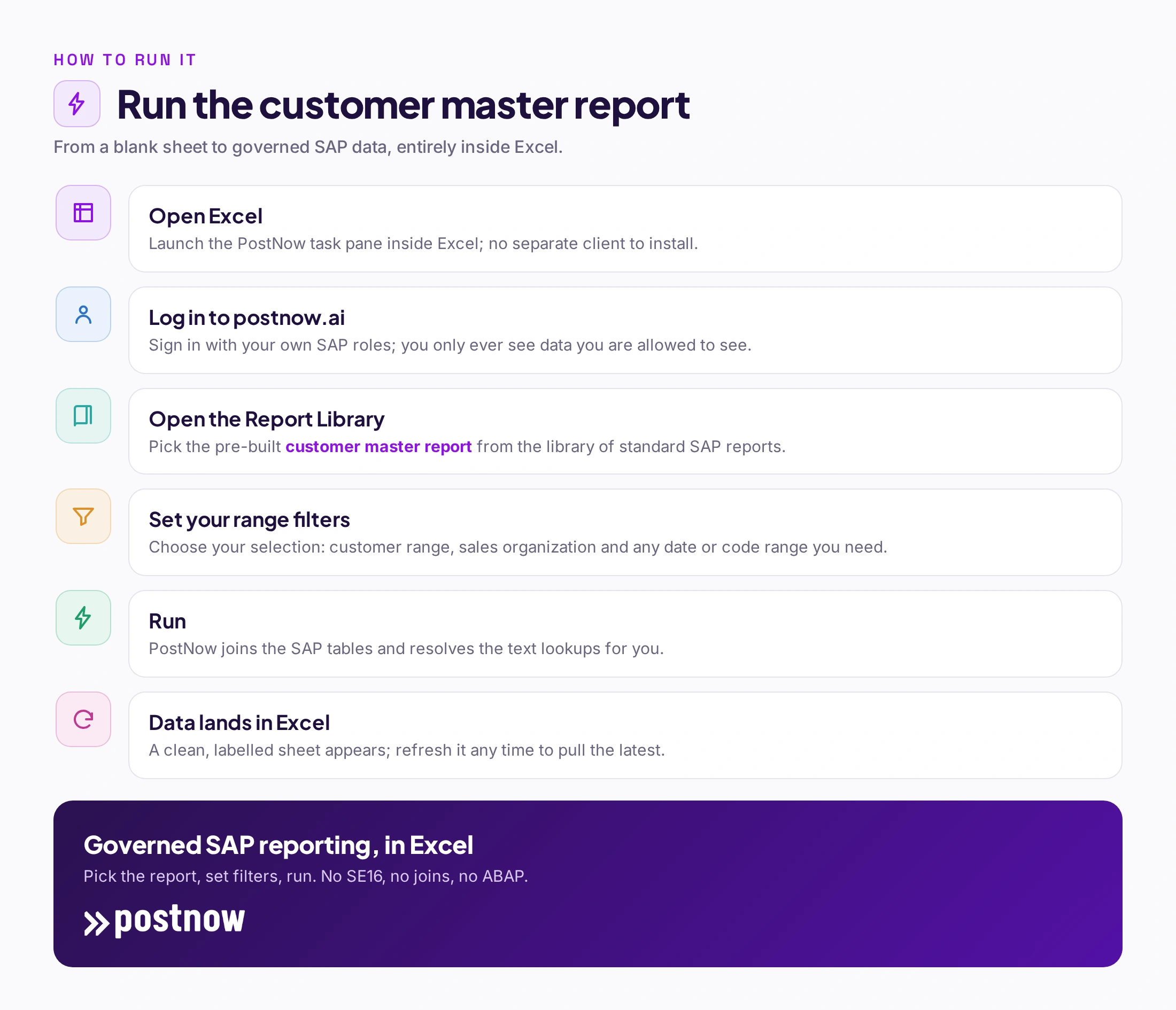
PostNow's Report Library already contains this exact report, pre-built. You do not assemble the joins or resolve the texts; that is done for you. You open Excel, log in to postnow.ai from the task pane, pick the customer master report, set your range filters, and run. The governed, joined data lands in the sheet, ready to filter, pivot or share, and you can refresh it whenever you need the latest.
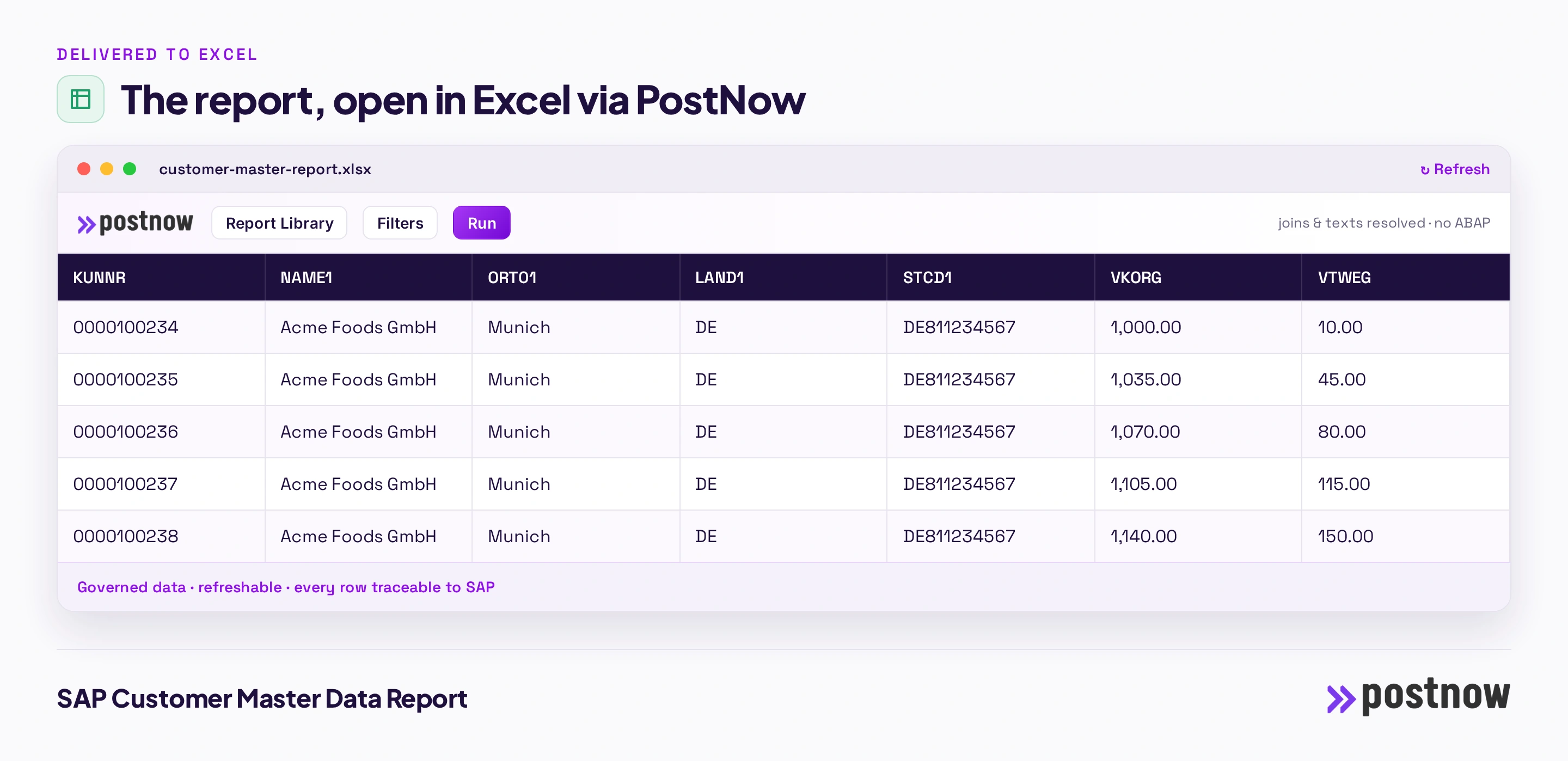
Two things make this different from a SE16 dump. First, it is governed: PostNow enforces your own SAP authorizations, so you only ever see the data you are entitled to, and every row can be traced back to its source. Second, it is repeatable: the same report, the same columns, refreshable on demand, with no ABAP to write or maintain. That is the payoff of teaching the hard version first, then handing you the shortcut.
Filters and selection you'll want
A good customer master report is only as useful as the selection you can put on it. The filters most teams reach for are:
- Customer range (KUNNR from / to)
- Sales organization (VKORG)
- Company code (BUKRS)
- Account group (KTOKD)
- Country (LAND1)
- Deletion / block flag (LOEVM)
You set these once as your selection, then reuse or adjust them each run. Because the selection travels with the report, a monthly extract becomes a single refresh rather than a rebuild.
ECC vs S/4HANA
In S/4HANA customers are modelled as Business Partners and maintained in transaction BP, but the underlying KNA1, KNB1 and KNVV tables still persist, so a table-based report reads identically on both.
The practical takeaway is that a report built on the tables and read through standard interfaces survives a migration far better than one wired to a specific screen or a custom program. When you eventually move from ECC to S/4HANA, a table-based customer master report keeps working, which is one less thing to rebuild in an already large project.
Frequently asked questions
How do I get a customer master report out of SAP into Excel?
You can export the underlying tables with SE16 and stitch them together in Excel, build a query in SQVI, or ask a developer for an ABAP report. The quickest governed route is a tool that already has the report built: in PostNow you log in to postnow.ai from the Excel task pane, pick the customer master report from the Report Library, set your filters and run, and the joined data lands in the sheet.
Which SAP tables hold customer master data?
The data is spread across several tables that have to be joined on their key fields: KNA1, KNB1, KNVV, KNVP, TVKOT / TSPAT. The report links them on KUNNR and resolves the text tables so the output reads in plain language.
Is there a standard SAP report or transaction for customer master?
There are standard transactions (XD03/VD03 and others), but they are built for on-screen display or for a fixed layout, not for a clean, refreshable Excel extract with exactly the columns you want. That is why most teams fall back to SE16 exports or a custom report.
How do I export customer master data to Excel without ABAP?
Use a tool whose SAP connection is set up once and then reads through standard interfaces, so no ABAP is needed for day-to-day reporting. PostNow reads the customer master tables, performs the joins and text lookups, and writes the result straight into Excel, refreshable on demand, with your own SAP authorizations enforced.
Can I refresh or schedule the report?
Yes. Because the report keeps its connection and selection, you can refresh it to pull the latest data at any time rather than rebuilding the extract. This is the main advantage over a one-off SE16 dump, which is stale the moment it is saved.
Does it work in S/4HANA?
In S/4HANA customers are modelled as Business Partners and maintained in transaction BP, but the underlying KNA1, KNB1 and KNVV tables still persist, so a table-based report reads identically on both.
What is the difference between KNA1, KNB1 and KNVV?
KNA1 is the general customer record at client level, holding name, address, country and tax numbers. KNB1 holds the company code view, such as the reconciliation account and payment terms, and there is one row per company code. KNVV holds the sales-area view, such as the sales office, customer group and division, with one row per sales area. A complete customer report joins all three on the customer number.
Can I report on customers across several sales areas at once?
Yes. Because KNVV carries one row per sales area, a customer extended to several sales areas produces several rows. A PostNow report can show every sales area, or you can filter to a single sales organization and distribution channel so each customer appears once.