What it is: An Excel to SAP data upload takes rows from an Excel file, maps each column to an SAP field, validates the data, and posts it into SAP so you get a document number for every record, in ECC or S/4HANA.
How to do it: Prepare a clean sheet (one row per record), log in to postnow.ai from the Excel task pane, choose the SAP transaction or BAPI, map columns to fields, validate every row, then post through a standard BAPI (BAPI Direct Post) or a recorded screen transaction (BDC playback).
Best method: For a repeatable, validated bulk load with per-row error detail and no daily ABAP, the Excel task pane approach is the most practical. It validates before posting and returns a document number per row.
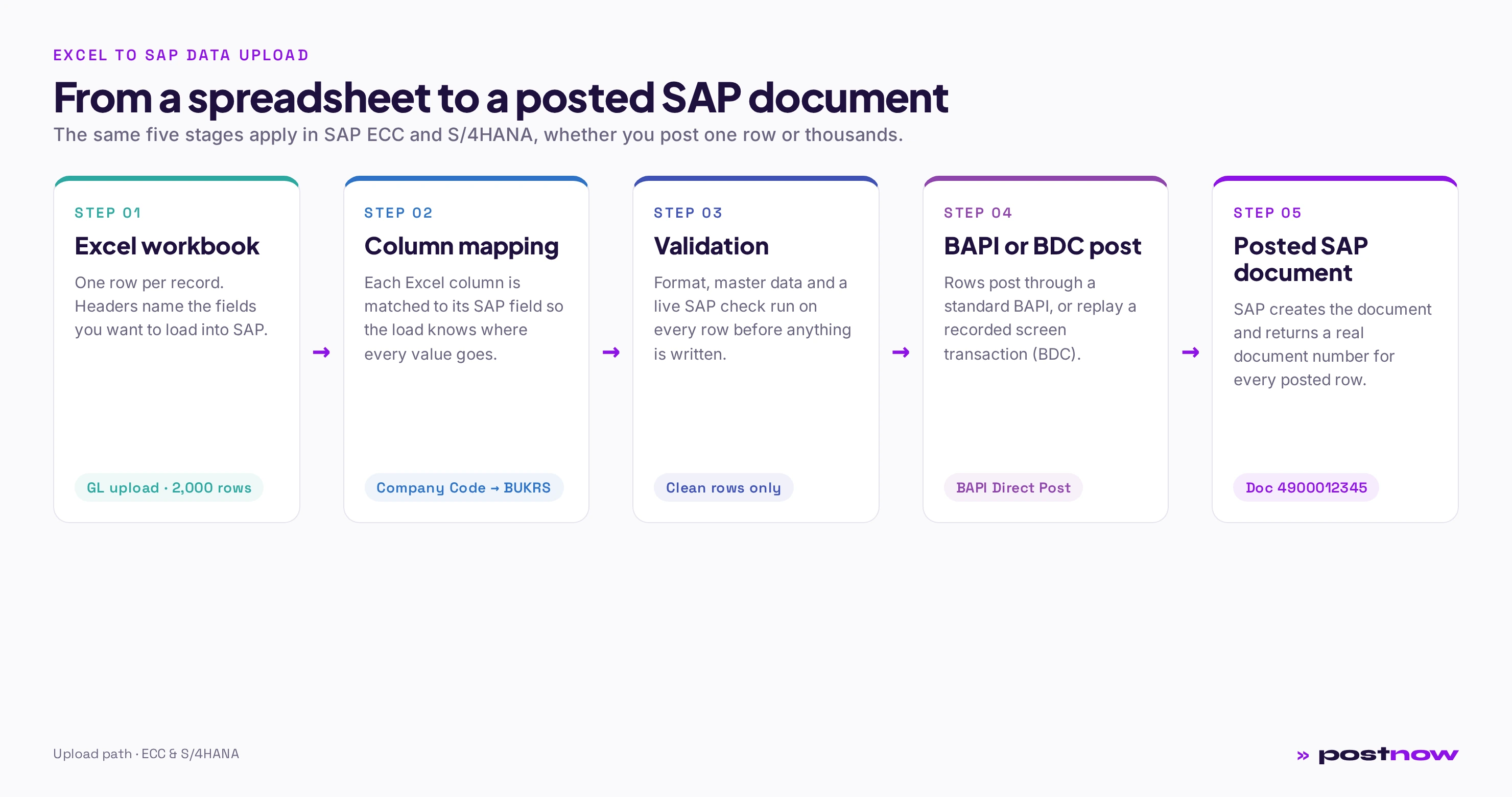
What "Excel to SAP data upload" really means
When people search for how to upload Excel to SAP, they usually mean one specific thing: they have a spreadsheet full of records, and they need those records to become real, posted entries inside SAP. That could be two thousand journal lines, a batch of new materials, a list of purchase orders, or a set of master-data changes.
The important word is posted. Copying an Excel range into an SAP screen field is not an upload. A genuine Excel to SAP data upload writes each row into the database through SAP's own logic, so the entry carries a document number, respects your configuration, and appears in every downstream report exactly as if a user had keyed it manually. The goal is to keep SAP's rules intact while removing the slow, repetitive keying.
There are three parts to any upload, and every method below handles all three in some form. First, structure: the spreadsheet has to be shaped so SAP can read it, with one row per record and a header row that names each field. Second, mapping: each Excel column has to be connected to the SAP field that will receive its value. Third, posting: the mapped, validated rows are written into SAP through a supported channel. Get those three right and the upload is reliable and repeatable. Get them wrong and you spend the afternoon chasing errors.
Volume is what makes this matter. Keying a single journal entry manually is fine. Keying two thousand of them at month-end, or extending five hundred materials to a new plant, or loading a quarter of purchase orders, is where the hours disappear and the typos creep in. The people who search for how to import Excel into SAP are almost always trying to remove that repetitive keying while keeping the result identical to what a careful user would have typed. That is the bar an upload has to clear: same accuracy, a fraction of the time.
This is the foundation of Excel to SAP automation: instead of one person retyping data all day, the spreadsheet becomes a controlled front end that loads, checks, and posts in minutes. The rest of this guide walks through each part in practical detail, and shows how PostNow handles each one from inside Excel.
Can you upload an Excel file directly into SAP?
Yes, but with an important qualification. SAP does not simply "open" an .xlsx file and turn it into documents. There is no single button in standard SAP that ingests any spreadsheet and posts it correctly, because SAP has no way of knowing which of your columns is the company code, which is the amount, or whether a row is even valid. Something has to sit between the file and the database to interpret the columns and drive SAP's posting logic.
What you can do is upload an Excel file through a tool or program that does that interpretation for you. A few options exist. Some SAP transactions accept a tab-delimited or spreadsheet-style file for a specific object. Classic tools such as LSMW read a flat file and replay it into a transaction. And an Excel task pane approach, which is how PostNow works, keeps the data in Excel and posts it into SAP directly from the spreadsheet through standard interfaces.
So the honest answer to "can you upload an Excel file directly into SAP" is: you upload it through a method that maps and validates it first. The practical question is not whether you can, but which method gives you the safest, most repeatable result for the transaction you are loading. That is what the next section compares.
A safe Excel to SAP upload never writes raw spreadsheet cells into the database. It maps columns to fields, validates every row, and posts through SAP's own logic so each record behaves exactly like a manual entry.
The methods compared: BAPI, BDC recording, LSMW, Excel task pane
There are four common ways to get Excel data into SAP. They are not really competitors; they suit different situations, and a good upload tool often uses more than one under the hood. Here is what each does and where it fits.
BAPI Direct Post. A BAPI is a standard, released SAP function that creates or changes a business object, for example a G/L document, a material, or a purchase order. Posting through a BAPI is the cleanest route because it runs SAP's own validation and returns a proper document number. BAPIs are stable across upgrades and support-pack updates, which matters when you plan to run the same upload for years. The limit is coverage: a BAPI has to exist for the object you want to post, and not every screen has one.
BDC recording playback. Batch Data Communication records the keystrokes of a real transaction and replays them at speed, filling the same screens a user would. Because it drives the actual transaction, BDC can reach almost any screen, including ones without a BAPI. The trade-off is fragility: if the screen flow changes after an upgrade or a configuration change, the recording can break, and error handling is at the screen level rather than clean and structured.
LSMW. The Legacy System Migration Workbench reads a flat file and maps it into a transaction or a BAPI through a project you configure once. It is powerful for large one-time conversions and is well understood by data teams, but it is a project tool. Setting up a mapping, running conversions, and generating batches is more overhead than a business user wants for a routine weekly load.
Excel task pane. This is the method PostNow uses. The add-in runs inside Excel, connects to SAP with your own SAP roles, and posts the mapped rows directly through standard BAPIs, or replays a recorded transaction (BDC) when no BAPI fits. The data never leaves the spreadsheet you already work in, validation runs on every row before anything posts, and each row comes back with its own result. It combines the safety of BAPI posting with the reach of BDC, without a daily ABAP requirement.
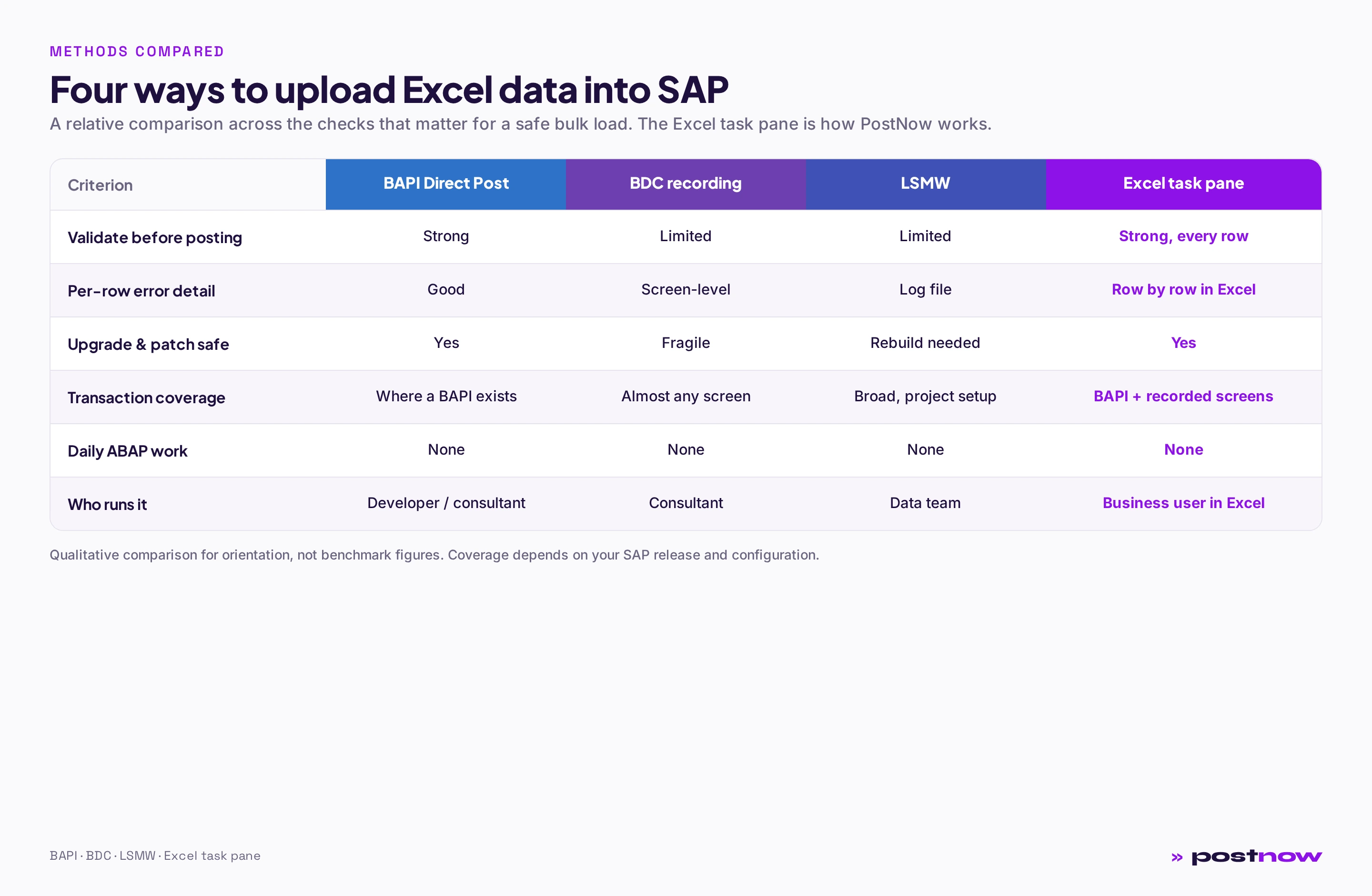
How do you choose? A simple rule works for most teams. If a BAPI exists for the object and you want the safest, most upgrade-stable route, post through the BAPI. If the object has no BAPI, or the process only lives on a screen, use a recorded transaction. If you are doing a single large conversion as part of a project, a project tool can earn its setup cost. And if you want business users to run repeatable, validated loads themselves without a project or a developer in the loop, the Excel task pane is the fit, because it applies BAPI and BDC for you and keeps the whole job inside the spreadsheet. The point is not to pick a favorite channel; it is to let the tool pick the right channel per transaction while you stay in Excel.
If you want a deeper walkthrough of each channel and when to choose it, the SAP data upload methods guide breaks them down transaction by transaction. For the foundations of loading at scale, the SAP mass upload from Excel pillar is the anchor reference.
The methods differ mainly in who can run them and how often. A recorded BDC or an LSMW object needs someone who knows the tool, and breaks when SAP screen sequences change. A BAPI-based add-in runs inside Excel and survives screen changes because it never drives the GUI. PostNow takes the second approach, posting to SAP ECC and S/4HANA over standard BAPIs, validating each row before it is written, and returning SAP's error messages in plain language rather than raw message numbers.
Which SAP transactions accept an Excel upload
Almost any SAP transaction that creates or changes data can be driven from Excel, as long as it has a BAPI or can be recorded as a screen transaction. In practice, a handful of transactions account for most upload demand, because they are the ones where volume is high and manual keying hurts the most.
| Area | Transaction | What you load from Excel |
|---|---|---|
| Finance | FB50 | G/L journal entries, mass postings, month-end accruals |
| Finance | FB01 / F-02 | General document postings with multiple line items |
| Materials | MM01 / MM02 | Create or mass change material master records |
| Purchasing | ME21N | Create purchase orders in bulk |
| Vendors | XK01 / FK01 | Vendor master creation and extension |
| Customers | XD01 / VD01 | Customer master creation |
| Sales | VA01 | Sales order creation from a spreadsheet |
| Inventory | MIGO | Goods movements and stock postings |
For step-by-step, transaction-specific instructions, see the guides for FB50 mass upload, mass create materials in MM01, and mass create purchase orders in ME21N. If you are changing existing records rather than creating them, the SAP mass change guide covers mass updates to master data and documents.
Step by step: uploading Excel data to SAP
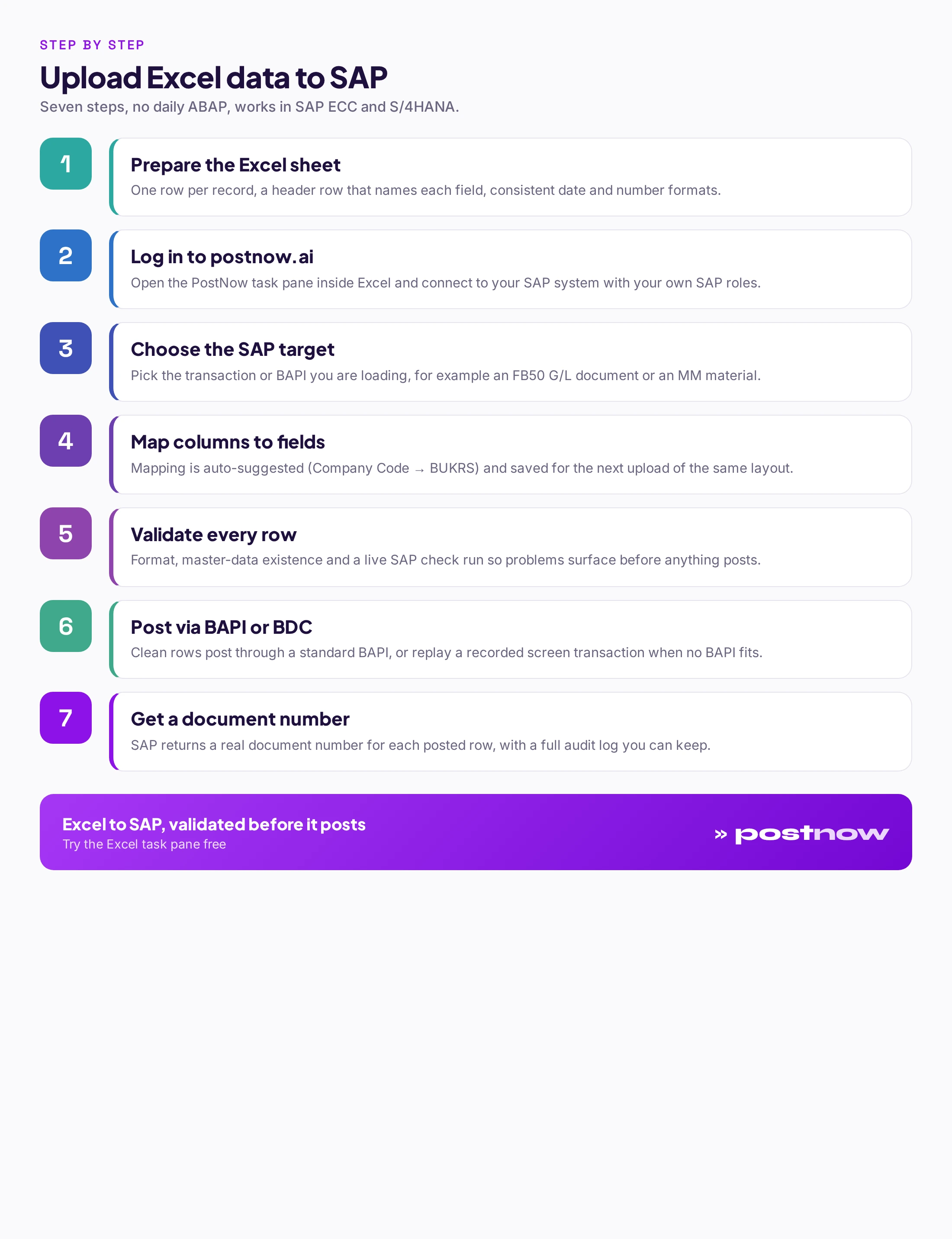
The exact clicks vary by tool, but every reliable bulk upload of Excel to SAP follows the same seven steps. Here is the sequence, described the way it works in the PostNow Excel task pane.
Before the steps, a word on preparation, because it is where most time is either saved or lost. The cleanest uploads start from a sheet that already looks like SAP wants it: one record per row, a single header row, no merged cells, no subtotal lines, and no blank rows used as visual separators. Numbers should be real numbers, not text that looks like numbers, and dates should be consistent. You do not need to know SAP field names at this stage; that is what the mapping step is for. You only need each record to be complete and each column to mean one thing. Spend five minutes on the sheet and the rest of the upload is almost boring, which is exactly what you want.
Prepare the Excel sheet
Put one record on each row and add a header row that names every field. Keep dates and decimals in a consistent format. Remove totals, merged cells, and blank separator rows so each line is a clean, self-contained record.
Log in to postnow.ai
Open the PostNow task pane inside Excel and log in to postnow.ai. The add-in connects to your SAP system using your own SAP user and roles, so the upload can only do what you are already allowed to do.
Choose the SAP target
Select the transaction or BAPI you are loading, for example an FB50 G/L document or an MM01 material. This tells the upload which SAP structure your rows will fill.
Map columns to SAP fields
Match each Excel column to its SAP field. Mapping AI suggests the pairs automatically, so Company Code lines up with BUKRS and Amount with WRBTR. Saved mappings make the next upload of the same layout instant.
Validate every row
Run validation before posting. Format checks, master-data existence checks, and a live SAP test flag any row that would fail, with the reason shown next to the row in Excel.
Post through BAPI or BDC
Post the clean rows. BAPI Direct Post writes each record through SAP's standard function; where no BAPI fits, BDC Recording Playback replays the screen transaction at speed.
Get a document number and audit log
SAP returns a real document number for every posted row, written back into your sheet, along with a full audit log of what was posted, by whom, and when.
Mapping Excel columns to SAP fields
Mapping is where most uploads succeed or fail, so it is worth understanding well. Every SAP field has a technical name, and your Excel headers almost never match those names. Mapping is the step that connects the two, telling the upload that your Company Code column feeds SAP field BUKRS, your GL Account column feeds HKONT, and your Amount column feeds WRBTR.
Some fields need extra care. Amounts must match the document currency and decimal rules. Dates have to be in the format SAP expects. Key fields such as the G/L account or cost center are not free text; they have to be values that already exist in SAP. And some postings need fields the business user never thinks about, like an indicator that marks a line as debit or credit. A good mapping step surfaces the required fields for the chosen transaction so nothing is missed.
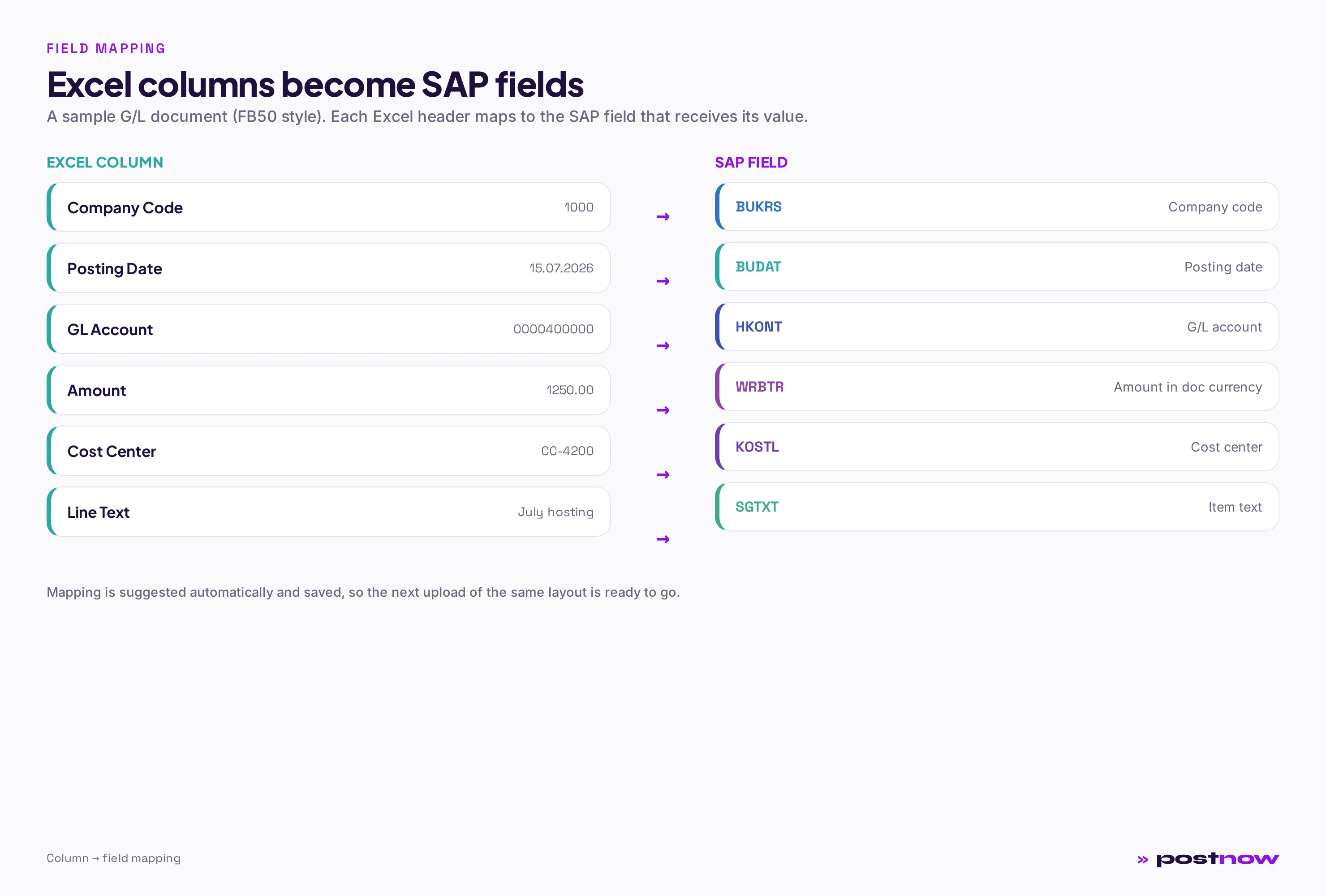
In PostNow, Mapping AI does the first pass automatically. It reads your headers and a sample of the data, then proposes the SAP field for each column, including the technical fields most people forget. You review and adjust, then save the mapping so the next upload of the same layout is ready immediately. That turns a fiddly, error-prone step into a few seconds of confirmation, which is a large part of what makes Excel to SAP automation practical for non-technical users.
Validating before you post
The single biggest difference between a safe upload and a risky one is validation before posting. A half-posted batch is far harder to clean up than a batch that was checked first, so the rows should be tested before a single record is written.
Good validation runs in three layers, and a row only posts if it clears all three.
- Format and structure. Are the required columns present? Are dates, amounts, and decimals in the format SAP expects? Are key fields filled? These are the cheap checks that catch the most common mistakes.
- Master-data existence. Does every referenced record actually exist in SAP? The G/L account, cost center, vendor, customer, or material is checked against the system, so a typo in an account number is caught before it becomes a failed posting.
- Live SAP check. A test call to the BAPI simulates the posting inside SAP. Configuration rules, tolerances, and your authorizations are all verified, so the row is only accepted if SAP itself would accept it.
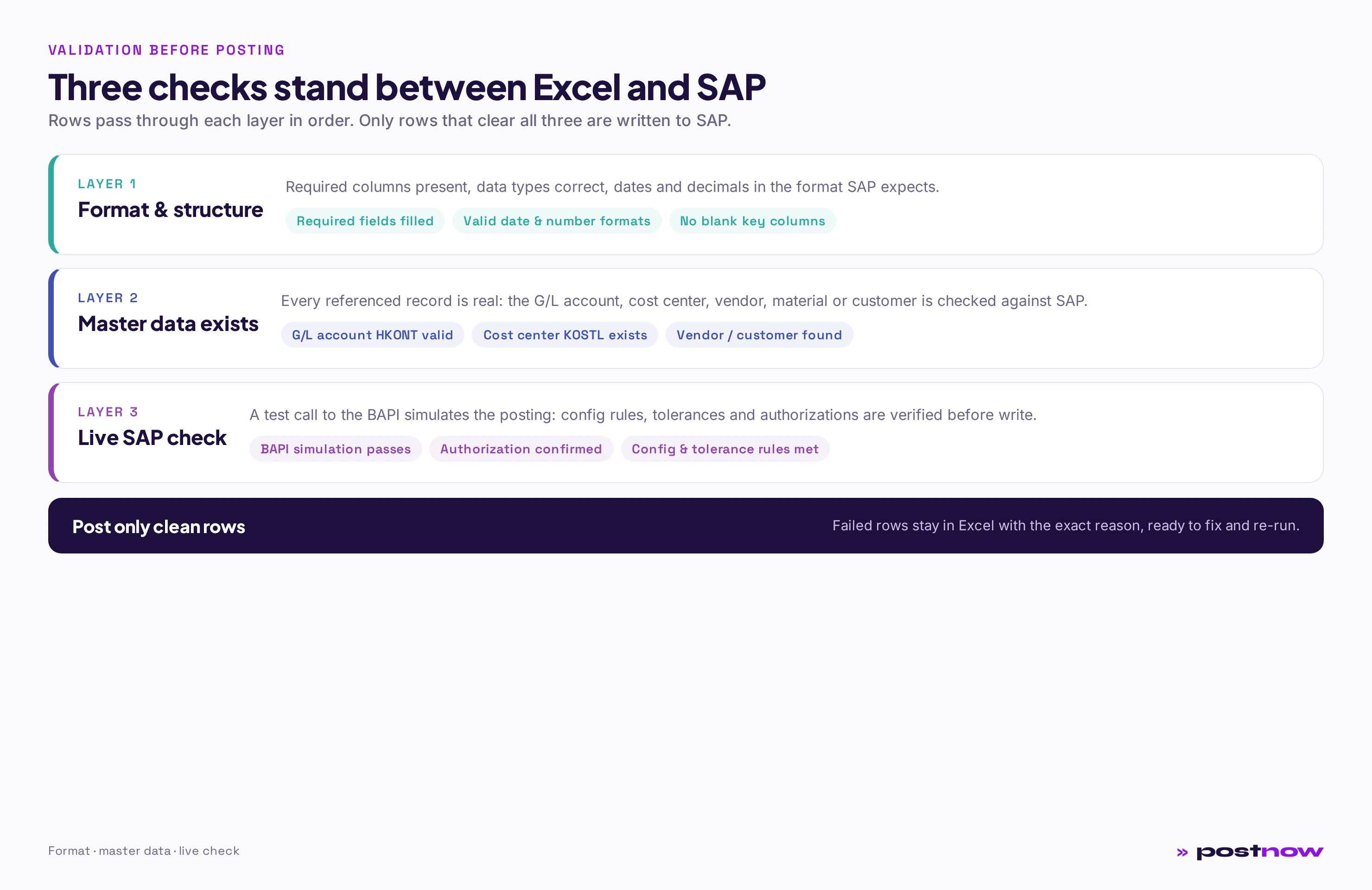
Because PostNow validates every row this way and shows the result next to the row in Excel, you fix problems in the spreadsheet you already know how to use, before anything reaches SAP. Clean rows post; failed rows stay behind with the exact reason. There is no guessing and no half-finished batch to unwind.
Handling errors and restarts
Even with strong validation, some rows fail at the moment of posting, because SAP is a live system and conditions can change between the check and the write. What matters is how the tool handles those failures. The behavior you want is simple: post what is good, hold back what is not, and tell you exactly why each failed row failed.
PostNow reports errors row by row. A failed line stays in your Excel sheet with the SAP message attached, so you can see whether it was a missing cost center, a locked period, a tolerance limit, or an authorization issue. You fix the flagged rows in place and run again. Because the successful rows already carry their document numbers, the re-run only touches what still needs posting, so there is no risk of double-posting the records that already went through.
This restart-safe behavior is what makes a large upload manageable. A batch of two thousand rows that comes back with a handful of failures is a five-minute fix, not a rollback. For repeated loads, saving the mapping and the validated layout means the next run starts clean, and the same discipline applies whether you are creating records or running a SAP mass change on existing ones.
ECC vs S/4HANA
An Excel to SAP data upload works in both SAP ECC and S/4HANA, and for the person doing the upload the experience is almost identical. The spreadsheet, the mapping, the validation, and the result are the same. What changes underneath is the SAP release and, in some areas, the data model.
The most visible difference is in finance. S/4HANA introduced the Universal Journal, which unifies several tables that were separate in ECC. In practice this affects how some fields behave and which BAPIs are current, but a well-built upload handles that for you by targeting the right interface for your release. Master-data objects like materials and business partners also changed in S/4HANA, most notably the shift to the Business Partner model for customers and vendors, which affects which transaction you record or which BAPI you call.
The practical takeaway: you do not need two different processes. Because PostNow posts through standard BAPIs and reads your system's own metadata, the same upload approach works whether you are on ECC today, on S/4HANA already, or migrating between them. That continuity is especially useful during a migration, when you are often loading and reconciling data across both landscapes. Teams planning that move often start from the SAP mass upload from Excel foundations and layer transaction-specific loads on top.
Doing it without ABAP
One of the most common searches is how to upload Excel to SAP without ABAP, and it is a fair thing to want. Writing and maintaining custom ABAP for every upload is slow, ties up developers, and creates code that has to be retested at every upgrade.
The honest picture is this. Any tool that posts into SAP relies on SAP's own interfaces, and those interfaces are enabled once when the tool is set up. After that one-time setup, there is no ABAP for you to write, run, or maintain for day-to-day uploads. You work entirely in Excel: prepare, map, validate, post. That is the difference between a one-time enablement and a daily development burden, and it is why the Excel task pane approach is realistic for business users rather than only for developers.
With PostNow, the day-to-day upload is genuinely code-free. You do not touch a transaction recorder, you do not open the ABAP editor, and you do not schedule a custom program. You post through standard BAPIs and, where needed, recorded transactions, all driven from the spreadsheet, with your own SAP roles enforced and a full audit log kept. The result is fast for the business and safe for the SAP team: no new custom code to own, and every posting traceable.
How you use PostNow to upload Excel to SAP
Everything above comes together in four capabilities that live in the task pane. Mapping AI reads your headers and proposes the SAP field for each column, including the technical fields most people forget, so mapping is a review rather than a lookup exercise. BAPI Direct Post writes each row through SAP's standard function and hands back a document number. BDC Recording Playback covers the screens that have no BAPI, replaying the transaction at speed. And AI Query Pilot lets you read data back out of SAP into Excel for analytics, so the same spreadsheet you loaded from can also report on what you posted. You choose the transaction, confirm the mapping, validate, and post. SAP does the enforcing, PostNow does the tedious parts, and the audit log records every row.
Because it all runs against your own SAP system with your own authorizations, an upload can never do something you are not already permitted to do. That is the reassurance SAP teams look for: the speed of a spreadsheet with the controls of the system of record intact. For a broader view of moving work between Excel and SAP, the Excel to SAP automation pillar sets out the full picture, and the SAP mass upload from Excel guide covers loading at scale.
Upload Excel data to SAP, validated before it posts
PostNow runs inside Excel, maps your columns to SAP fields, checks every row, and posts through standard BAPIs in ECC and S/4HANA. No daily ABAP, a document number for every row, and a full audit log.
Start free trialFrequently asked questions
How do I upload data from Excel to SAP?
Prepare a clean sheet with one row per record and a header row that names each field. Then use an upload method that maps your columns to SAP fields, validates the data, and posts it. With PostNow you log in to postnow.ai from the Excel task pane, choose the SAP transaction or BAPI, let Mapping AI match columns to fields, validate every row, and post through a standard BAPI or a recorded transaction. SAP returns a document number for each posted row.
Can you upload an Excel file directly into SAP?
Not as a raw file on its own. SAP has no way to know which column is which or whether a row is valid, so something has to map and validate the spreadsheet first. You upload the Excel file through a tool or program that interprets the columns and drives SAP's posting logic. An Excel task pane approach keeps the data in the spreadsheet and posts it into SAP directly through standard interfaces.
What is the best way to upload Excel data to SAP?
For a repeatable, validated bulk load with per-row error detail and no daily ABAP, the Excel task pane method is the most practical. It combines the safety of BAPI posting with the reach of BDC recording, validates before it posts, and returns a document number per row. For a large one-time conversion, a project tool like LSMW can also fit. The right choice depends on how often you run the load and how much error control you need.
How do I upload Excel to SAP without ABAP?
Use a tool whose SAP interfaces are enabled once at setup, after which the day-to-day upload needs no ABAP. With PostNow you work entirely in Excel: prepare, map, validate, and post through standard BAPIs. There is no ABAP to write, run, or maintain for routine uploads, and your own SAP roles are enforced on every posting.
Which SAP transactions accept Excel upload?
Most create-and-change transactions can be driven from Excel where a BAPI exists or the screen can be recorded. Common ones include FB50 and FB01 for finance postings, MM01 and MM02 for materials, ME21N for purchase orders, XK01 for vendors, XD01 for customers, VA01 for sales orders, and MIGO for goods movements. Transaction-specific guides cover the exact fields and steps for each.
Is BAPI or BDC better for uploading Excel data?
BAPI is usually better when one exists: it runs SAP's own validation, returns a proper document number, and stays stable across upgrades. BDC recording is the fallback for screens that have no BAPI, since it can reach almost any transaction, but it is more fragile if the screen flow changes. A good upload tool uses BAPI where possible and BDC only where needed, which is how PostNow works.
How do I handle errors when uploading from Excel?
Validate before posting, then post only the clean rows. When a row fails, the SAP message should be shown next to that row so you know exactly why: a missing cost center, a locked period, a tolerance limit, or an authorization issue. Fix the flagged rows in the spreadsheet and re-run. Because successful rows already carry their document numbers, a restart only touches what still needs posting, so nothing is double-posted.
Does Excel to SAP upload work in S/4HANA?
Yes. The upload experience is the same in ECC and S/4HANA. What changes underneath is the SAP release and, in some areas, the data model, such as the Universal Journal in finance and the Business Partner model for customers and vendors. A tool that posts through standard BAPIs and reads your system's metadata handles those differences, so the same approach works on ECC, on S/4HANA, and during a migration between them.